
BOM Report Job


To celebrate the release of Vault 2015 R2, I wrote an app that lets you generate BOM reports automatically through the Vault job server. 

If you are not already aware, Vault 2015 R2 has a BOM Report feature.  From any BOM view, you can run the Report command to generate a report of the BOM that you are viewing.  This report uses the same engine as File and Folder reports, which has a good deal of customization options.  There are also default templates to help you get started quickly.
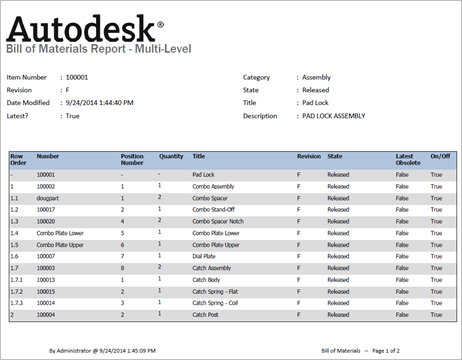
 

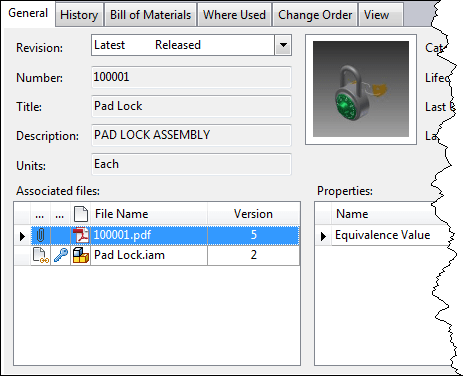
However, the out-of-the-box BOM Report feature is a manual process.  If you want to automate things, my plug-in hooks to job server and lets you trigger reports when items change state.  When the job runs, it generates the report, saves it to Vault as a PDF and attaches it to the item.

Requirements:

  • Vault Professional 2015 R2
  • Must have job queue enabled.
  • Must have a “Quick Change” state that the plug-in can use to move the item to edit mode.
  • Must have a folder in Vault for storing the generated reports.

Click here to download the application
Click here to download the source code

To configure BOM Reports, install the app and follow the readme.  You can find the readme in the install location (%ProgramData%\Autodesk\Vault 2015 R2\Extensions\BOMReportJob).  Administrative rights are required to configure the Vault job server.


All the apps on this blog have a legal disclaimer on them, but I want to make this one more obvious since it’s dealing with BOM data.  BOM Report Job is not an official product.  It’s technically classified as a sample app.  So please keep that in mind when dealing with these reports.  For example, if you are using the report to purchase $50,000 worth of parts, you may want to double check the numbers first before putting the order in. 


Comments

8 responses to “BOM Report Job”

  1. Stunning!! Can you get it to generate a row per quantity now?? So if there are Qty 3 components, you can get it to report 3 line items? I’ve wanted to use Vault to generate component labels with barcodes for a long time. I’m really hoping this change supports that.

  2. 2015 R2 has a “grouping” feature that lets you show multiple rows for different instances of the same part. If you can see that in the BOM view, then the BOM Report should be able to give you the same view.
    If you want a BOM Report that looks different than what you see in Vault Explorer, then this app will not do that. However, the source code is available, as usual. So you can program your own type of BOM view.

  3. scott moyse Avatar
    scott moyse

    Excellent. Thanks Doug. In think it will need to be different because the grouping is fixed to match the grouping in the inventor BOM I believe. I didn’t realize they could be different via the API.

  4. Hi Doug
    Is this BOM Generation is same as inventor API BOM Export to CSV file using following call.
    var bom = assemblyDoc.ComponentDefinition.BOM;
    bom.BOMViews[“Structured”].Export(csvFilePath, FileFormatEnum.kTextFileCommaDelimitedFormat);
    can we use vault API for generating BOM and exporting it to csv.
    thanks

  5. mario.lung@westcam.at Avatar
    mario.lung@westcam.at

    hey
    can we have the example also in vb .net please
    thx mario
    ADN User also

  6. Normally I don’t include VB.NET examples because there are web sites you can go to that do the conversion automatically.
    But in this case, I included the app in an AU class, and built a VB.NET example for it. You can find it in the Additional Materials download of my AU class: http://au.autodesk.com/au-online/classes-on-demand/class-catalog/2014/vault/sd5329

  7. Pim Saarloos Avatar
    Pim Saarloos

    Hi Doug,
    I am trying to get this sample to work in 2016. The JobExtension class contains a function ‘ReadBOMData’ that uses a web method ‘GetLastestItemInRevisionByItemId’. This method doesn’t seem to be available in 2016 anymore and the API help doesn’t give information about the 2016 equivalent. Which method should be used in 2016?

  8. Here is the answer I got back from the Vault team: “GetLatestItemByItemMasterId would be my guess.”
    If that doesn’t work, I suggest logging an ADN ticket. Sorry about that.

Leave a Reply

Discover more from Autodesk Developer Blog

Subscribe now to keep reading and get access to the full archive.

Continue reading