
Named Geometry is an iLogic feature that lets you tag geometry in the UI:
(See section “Use Assign Name to Identify Geometry for Constraints” here)

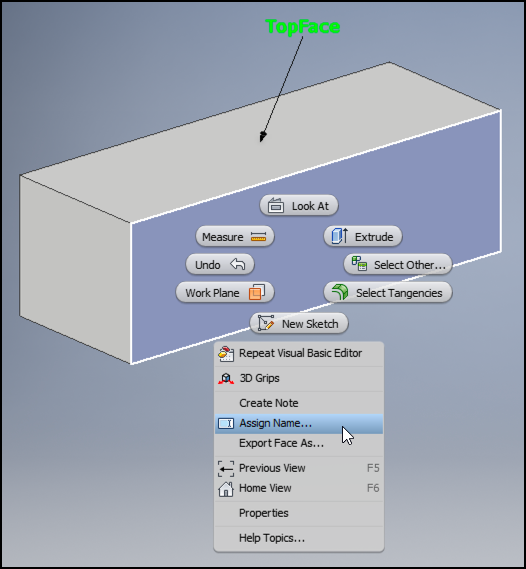
iLogic has an Automation interface that lets you automate iLogic specific features from your iLogic Rule or add-in/app.
Using that we can also manipulate Named Geometry entries – e.g. add a new one.
This is what it would look like in a Rule:
' Select Face before running this code
Dim iLogicAuto = iLogicVb.Automation
Dim namedEntities = iLogicAuto.GetNamedEntities(ThisDoc.Document)
Dim f = ThisDoc.Document.SelectSet(1)
namedEntities.SetName(f, "MyNewFace")
Result:

We can also achieve the same from e.g. VBA:
Sub AddNamedGeometry()
' Select Face before running this code
Const iLogicAddinGuid As String = "{3BDD8D79-2179-4B11-8A5A-257B1C0263AC}"
Dim doc As Document
Set doc = ThisApplication.ActiveDocument
Dim addin As ApplicationAddIn
Set addin = ThisApplication.ApplicationAddIns.ItemById(iLogicAddinGuid)
Dim iLogicAuto As Object
Set iLogicAuto = addin.Automation
Dim namedEntities As Object
Set namedEntities = iLogicAuto.GetNamedEntities(doc)
Dim f As Face
Set f = doc.SelectSet(1)
Call namedEntities.SetName(f, "MyNewFace")
End Sub
-Adam
Leave a Reply