

Working Folder

Working Folder is another one of those concepts that is more complex than you would expect it to be.  At it’s core, things are pretty simple, you map a local folder to a Vault folder.  That way Vault clients know were to upload and download files to.  The complexity comes from additional features that are built on or around this concept. I’ll try to detangle everything by listing the various features related to working folder and their related APIs.


Per-folder setting
If you right-click on a Vault folder and select Details, you will see the local folder that corresponds to that Vault folder.  By default, the $ folder is mapped to a folder in your user settings.  Also by default, a sub-folder is mapped based on the parent folders mapping.
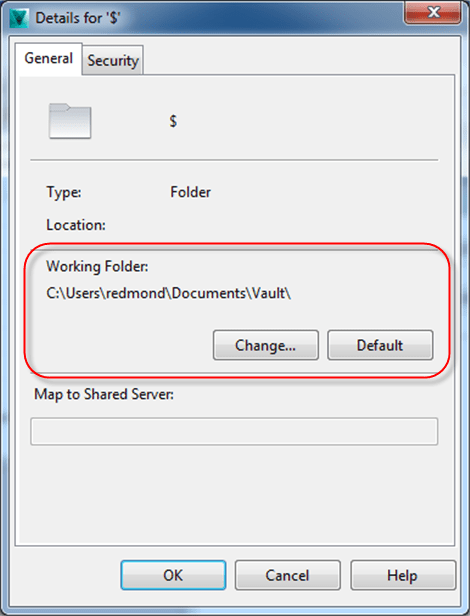
You can override the default settings.  So a sub-folder on disk may not necessarily correspond to the the parent folder on disk.  In fact, you can even reverse the order so that the sub-folder in Vault is the parent file on disk. 

These settings are stored in an XML file on your local computer.  The easiest way to access that data is through the function Connection.WorkingFoldersManager.GetWorkingFolder().  It takes care of all the calculations for you and gives you the same path you see in the Folder Details dialog.


Enforced working folder
The Vault administrator can enforce a root working folder.  This setting has the effect of overwriting any folder mappings set in the Folder Details window.  An enforced working folder only gets applied to the root and all sub-folders are based off the root setting. 

When an enforced working folder is in effect, the user is prevented from setting a working folder in the Vault client.  However, the API function Connection.WorkingFoldersManager.SetWorkingFolder() still works, so be careful.  The next time the user logs in through the Vault Explorer client, it will overwrite anything you changed with SetWorkingFolder.


Inventor project files
Inventor ignores any mappings you set through the Vault client.  Instead it uses the .ipj file to map Vault folders to your local folders.  So the GetWorkingFolder() won’t help you when working with Inventor. You need to either read the .ipj contents or use the Inventor API to figure out what the mappings are.

Since the .ipj file is critical for almost every Inventor operation, Vault has a special setting that you can use to locate the .ipj file.  In the DocumentService there are two functions you can use to get at this data.  GetEnforceInventorProjectFile() tells you if there is an .ipj file set to be used by the entire Vault.  GetInventorProjectFileLocation() gives you the Vault path to the enforced .ipj file.


Comments

2 responses to “Working Folder”

  1. I have a problem with working folder.
    If I set the working folder anything other than the default working folder and get the file from vault as it explain here and a few other pages, all the file get downloaded properly. But when I open the assembly in Inventor, Inventor tries to find the file in the folder that was created.
    For example:
    If in D:\Vault\Folder1, there are ASM1.ism that has part1.ipt, part2.ipt and while downloading, I specify it to be downloaded to D:\Vault\Folder2, the three files will be downloaded to the new folder and every thing seems to be ok. However, when I open the assembly file in the new folder (Folder2), it still opens the parts in Folder1.
    If I use “Autodesk Vault Basic” that comes with Inventor, it does it correctly and update the reference, but using API, I had no success.
    Here is my code:
    Dim fname As String = dlg1.LookIn.Text + “/” + dlg1.FileName.Text
    Dim file1 As Autodesk.Connectivity.WebServices.File()
    file1 = connection.WebServiceManager.DocumentService.FindLatestFilesByPaths({fname})
    If file1.Length <> 0 Then
    Dim oFileIteration As VDF.Vault.Currency.Entities.FileIteration = Nothing
    oFileIteration = New VDF.Vault.Currency.Entities.FileIteration(connection, file1(0))
    If oFileIteration Is Nothing Then
    MsgBox(“Error: Can’t find the file”)
    Exit Sub
    End If
    Dim oSettings As VDF.Vault.Settings.AcquireFilesSettings =
    New VDF.Vault.Settings.AcquireFilesSettings(connection)
    ‘Going to Checkout and download
    oSettings.DefaultAcquisitionOption = VDF.Vault.Settings.AcquireFilesSettings.AcquisitionOption.Download
    oSettings.OptionsRelationshipGathering.FileRelationshipSettings.IncludeChildren = True
    oSettings.OptionsRelationshipGathering.FileRelationshipSettings.RecurseChildren = True
    oSettings.OptionsRelationshipGathering.FileRelationshipSettings.VersionGatheringOption = _
    VDF.Vault.Currency.VersionGatheringOption.Latest
    oSettings.LocalPath = New VDF.Currency.FolderPathAbsolute(“D:\Vault\Designs\temp-v”) ‘connection.WorkingFoldersManager.GetWorkingFolder(oFileIteration)
    oSettings.AddEntityToAcquire(oFileIteration)
    oSettings.LocalPath = New VDF.Currency.FolderPathAbsolute(“D:\Vault\Designs\temp-v”) ‘connection.WorkingFoldersManager.GetWorkingFolder(oFileIteration)
    connection.FileManager.AcquireFiles(oSettings)
    End If

  2. You should post this issue on the Vault Customization discussion group. http://forums.autodesk.com/t5/vault-customization/bd-p/301
    Blog comment sections are not a good place to post code snippets. Also, there are more people reading the discussion group.

Leave a Reply

Discover more from Autodesk Developer Blog

Subscribe now to keep reading and get access to the full archive.

Continue reading