

The only part I don’t like about a new release is updating my sample apps. Just like with last year, I don’t have time to update all my apps. I’m just going to focus on the ones that are important to me.
vLogic looks like a good place to start, even though I just built the 2012 version a couple months ago. It’s one of those apps that I immediately wanted to add features to right after I posted it.
New for Vault 2013:
Event support – vLogic scripts now come in two flavors. Command scripts are invoked by the user when they click on the menu command. Event scripts are invoked automatically when actions take place. These scripts hook right into the web service command events, so you can run scripts during a checkout, add folder, delete item, and so on. I also put in hooks for the OnLogOn and OnLogOut event in Vault Explorer.
There is a naming convention to determine which .ps1 files hook to which events. See readme for more details. Note, the example event scripts are inactive after installation. You need to remove the ‘_’ prefix and restart Vault Explorer for those scripts to run.
Easier navigation – Hold down the SHIFT key when running the “Create New Command” menu item and an explorer window will open to the vLogic folder.
vLogic Features:
- No Visual Studio required to write custom commands and event handlers.
- No compile step.
- No deploy step.
- Commands can be updated without having to exit Vault Explorer.
- Easy to share scripts or modify scripts from others.
Requirements:
- Vault Workgroup/Collaboration/Professional 2013
- Windows PowerShell (should already be part of your OS)
Click here to download the application
Click here to download the source code
Upgrading from vLogic 2012:
Your old scripts need to move to the “%ProgramData%\Autodesk\Vault 2013\Extensions\vLogic\command scripts” folder. Some API functions have changed in 2013. See the Vault 2013 SDK documentation for a list of all changed functions. If the parameters are wrong on an API function, it will result in a runtime error.
To use:
Run the install and start Vault Explorer.
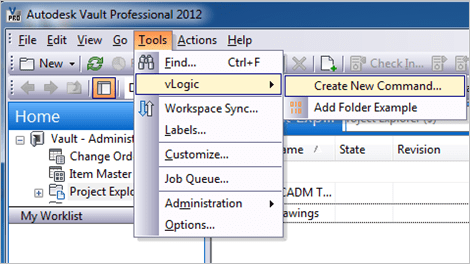
Under the Tools menu is the vLogic menu. This is where you can run existing scripts or create new scripts.
To create a new command script, select Create New Command from the vLogic menu. After giving your script a name, you will have to re-start Vault Explorer. When the program re-starts, your command should show up in the vLogic menu.
To edit a script, hold the shift key and click on the command. The PowerShell ISE should pop up, allowing you to edit the script while Vault Explorer is running. When you are done with your changes, save the file in the editor.
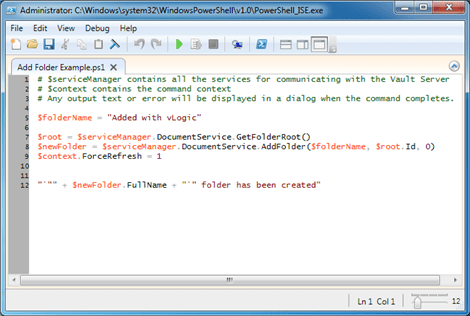
To run a script, run the command from the vLogic menu.
To delete a script, go to %ProgramData%\Autodesk\Vault 2013\Extensions\vLogic[script folder] and remove the .ps1 file. You can also add commands by putting .ps1 files into the appropriate folder.
As with all the samples on this site, the legal disclaimer applies.



Leave a Reply