The worklist feature in Vault Professional is a nice feature.  It pops up information informing you of any change orders you need to take action on.  The only problem is that you need to launch the Vault Professional client to get that feature.  Chris Sawicki and Brian Schanen decided to change that with Vault Gadget.


(click image for full view)

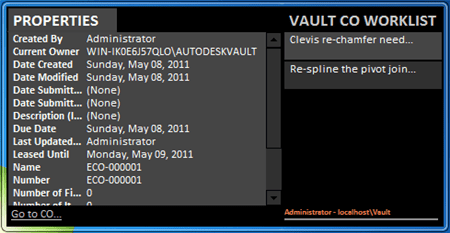
Vault Gadget allows you to view your worklist from your Windows desktop, without the need to run Vault Professional. 

Requirements:

  • Vault Professional 2012

Click here to download

To use:

  1. Extract the contents of the ZIP file to “%localappdata%\Microsoft\Windows Sidebar\Gadgets”. The result of this step is a folder named VaultCO.Gadget in the “%localappdata%\Microsoft\Windows Sidebar\Gadgets” folder.
  2. Right-click on the desktop and select the “Gadgets” menu item. The Gadget Gallery will be displayed.
  3. Find the “Vault CO Worklist” gadget (you may have to page through the gallery to find it). Click on the gadget and drag it onto your desktop. The gadget will appear on the desktop and error information will be displayed.
  4. Enter in your Vault connection settings.

Features:

  • See the change orders in your worklist without running Vault Professional.
  • Refresh timer – adjust how often Vault Gadget checks for worklist items.
  • Click on a change order to view the properties.
  • Click on the "Go To CO" link to launch Vault Professional and navigate to the Change Order.
Source Code:
Vault Gadget is a set of HTML pages with embedded javascript.  So the application is the source code.  Just use an HTML editor to see how it works.  Communication with the Vault Server is very low level in this example.  The javascript is creating and parsing the raw XML. 

As with all the samples on this site, the legal disclaimer applies.

4 weeks have passed and, as promised, 4 apps have been posted.  Special thanks to all the members of the Vault team that submitted apps.  We now return you to your regular Vault API blog.


Comments

9 responses to “Vault Gadget”

  1. Doug,
    Is there any secrets to making the gadget work? I’ve tried everything! and all I’m seeing is the VAULT CO WORKLIST windows with yellow lettering Could not retrieve COs Please check your gadget settings. My settings are set and I even verified my email settings and am notified that way, but can’t get the gadget to work. It would be pretty neat if it did work. Thanks. Joseph
    PS… yes, all my 2012 pro hotfixes have been updated

  2. Offhand I don’t have an answer, but I have heard of this before.
    What is your username, server and vault name? What are the special characters in your password?
    If you don’t want to post this information on my blog, you can send me a private message at http://forums.autodesk.com/t5/user/viewprofilepage/user-id/289439

  3. Hi Doug,
    How bout this? User name: administrator
    server: 127.0.0.1
    vault name: industrial machine (I’m using it for testing purposes, it’s the one Brian S. has used in his Vault classes) no special characters in the password – very simple actually, 1234abcd
    Any help you might share would be truly appreciated.
    Regards,
    Joe B.

  4. Here is another thing to try.
    Remove the gadget from your desktop. Go to “%localappdata%\Microsoft\Windows Sidebar\Gadgets”, delete VaultCO.Gadget, download it again and deploy it again.
    Let me know if that fixes it.

  5. Does this consume a Vault Network License?

  6. No, it will not consume a Vault license.

  7. Amazing gadget over the Window 7. Now there would be change over the Window 8 with great changes with their desktop appearance.

  8. I cannot get it to work on my Workstation either, tried it on a colleagues and works fine. I also tried both host name and IP address of Vault server.

  9. I still haven’t been able to reproduce this issue on my end. Can you give more details about your system?
    What is your Windows version? Are there any special security policies in place? Are other gadgets running? Is anti-virus software running? Of so what happens when you disable it? Is there anything else different between your system and your colleague’s system?

Leave a Reply to online qr codeCancel reply

Discover more from Autodesk Developer Blog

Subscribe now to keep reading and get access to the full archive.

Continue reading