

Vault 2012 was a very eventful release for the API in the sense that we added a 3 event engines for you to hook to in your programs. I've already talked about Web Service Command Events, which is the most complex of the 3. Now let me switch to the most simple type, Vault Explorer Command Events.
Whenever any UI command is invoked in Vault Explorer, it will fire a pre and a post to anyone that subscribes. The UI command is basically everything in the main menu, toolbars, and context menus. In your handler, you get passed in the key string for that command. And that's it. You don't get the selection context and you don't get any information about what happened during the command.
It told you it was simple. But don't worry, I can stretch this out to a full article. Just because a feature is simple doesn't mean it's useless.
Here are a couple of uses to get things started…
Use #1: Cache clearing
Sometimes I find myself building up a cache in my custom command. For example, I'll need to read all the file Property Definitions. I don't want to read these objects each time my command is invoked, so I save the data in memory. But what if I want to keep my cache up-to-date? I just need to check for the Refresh or Admin Settings command and clear the cache at that point.
Use #2: Event combo
Just like in video games, you make use of combos to get the best results.
Web Service Command events are good at knowing what work is being done but only in isolation. They don't know what overall command is being done. Vault Explorer Command events are just the opposite. If you combine the two, you have a fairly complete picture.
Here is the timeline of a Copy Design operation that creates 3 files. The top blue lines are the Vault Explorer events, the bottom blue lines are the web service events, and the red lines are the web service function calls.
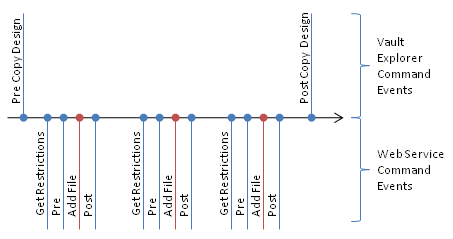
We can make good use of all these events. For example, you can send out an email report after a copy design is completed. Here is how you would do it:
- In the Vault Explorer pre event for Copy Design: Create a new List.
- In the DocumentService AddFile post event: Add the File to your List.
- In the Vault Explorer post event for Copy Design: Use the entries in the List to send out the email report explaining which files were added via Copy Design.
Now you're playing with power!
Cheat Code:
You will probably want to know the key string values for the various UI commands. This information isn't documented anywhere. But here some code that you can use to build your own dev app that displays the key value each time you invoke a command in Vault explorer.
|
// A simple dialog with a label to display the commands public TextDialog() // In your IExtension class void application_CommandBegin(object sender, CommandBeginEventArgs e) |
|
' A simple dialog with a label to display the commands Public Sub New() Dim m_commandBox As TextDialog Public Sub OnStartup(application As IApplication) Private Sub application_CommandBegin(sender As Object, e As CommandBeginEventArgs) |
Coming soon: Web Service Invoke Events (aka. God Mode)


Leave a Reply to Doug RedmondCancel reply