


Update: A new version is out. Many cool new featues.
There is a belief among cloud evangelists that the web interface is going to completely dominate all software. In the future, we will all be using the web browsers for everything. I, for one, hope that day never comes. There is something I just like about the feel of a desktop app. I’m used to things like right-clicking, drag-and-drop, keyboard shortcuts. The desktop app is something I’ve missed since moving to the PLM 360 team. With that in mind I decided to create (dun-dun-DUNNNN) The TTP Project.
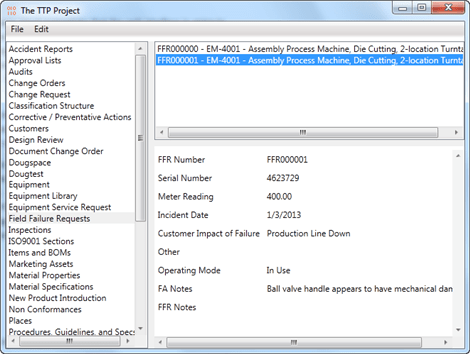
Actually, a working desktop app was a secondary goal of mine, one which I didn’t quite achieve. Although the app works, it’s not something an end user would find useful in it’s current state. Maybe that will change in the future.
My main goal was to come up with a prototype SDK library for the PLM REST API. That goal came out much better. The PLM360Utils project has some goodies for .NET developers. For example, with a few lines of code, you can completely bypass steps 1-7 of the Authentication process. The DLL does all the OAuth stuff for you so that you don’t have to. Other features include wrappers for some REST calls and an easy mechanism for defining wrappers that I didn’t include.
Keep in mind this isn’t an official library or anything. It’s just something I’m playing around with. So let me know what you think.
Requirements:
- PLM 360
- Windows OS
- .NET 4.5
Click here to download the application
Click here to download the source code
As with all the samples on this site, the legal disclaimer applies.
To use:
- Download, install and run
- Go to Edit->Settings to set the PLM 360 site you want to work with.
- Go to File->Login to log in to PLM 360.
- Browse a workspace by clicking on the workspace name on the left pane.
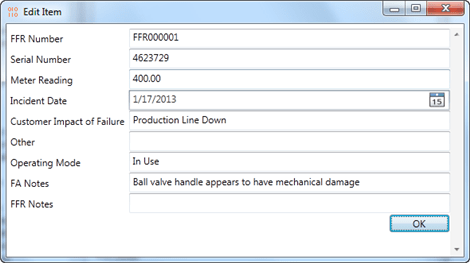
- Add or edit an item by running the commands under the Edit menu.
For .NET developers, here are some highlights from the PLM360Utils.
You can log in with just a few lines of code…
LoginSettings settings = new LoginSettings(
clientId, plmUri, oxygenConsumerKey);
m_conn = PLM360Utils.Library.Login(settings);
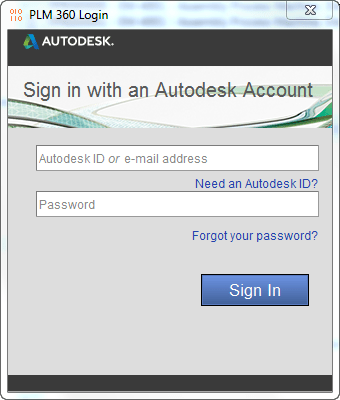
The library will pop up UI to the user that takes them to the Autodesk single-sign-on page.
If the login succeeds, you get back a Connection object. Connections are mainly for running Operations. Each Operation object represents a single REST API call. Here is an example.
GetWorkspaceCollection operation = new GetWorkspaceCollection();
m_conn.RunOperation(operation);
PagedCollection<Workspace> workspaces = operation.OutputPayload;
PagedCollection and Workspace are Payload objects. PLM360Utils takes care of the JSON serialization.
If you want to use a REST endpoint that doesn’t yet have an Operation object, you can easily create your own. Just follow the pattern from the existing classes. For example, here is the entire Operation class for updating an item.
publicclassUpdateWorkspaceItem : Operation<ItemDetail, ItemDetail>
{
public UpdateWorkspaceItem(long workspaceId, long itemId, ItemDetail update)
: base(HttpMethod.Put, string.Format(
"/api/v2/workspaces/{0}/items/{1}",
workspaceId, itemId), update)
{ }
public UpdateWorkspaceItem(Uri fullUri, ItemDetail update)
: base(HttpMethod.Put, fullUri, update)
{ }
}
There is not much code because the Operation base class does most of the work. The subclass just has to define things like the input type, the output type, the http verb and the URL.
Complex REST calls, like ones that involve binary data, are not yet supported by PLM360Utils. So you will have to get the HttpClient from the Connection and make the REST calls directly.

Leave a Reply