
Properties in Vault 2011 – Part 4

This posting is all about source code.  Here you will find useful code snippets for dealing with properties. 

How to get the list of legal values for a property definition
If you have a property definition that contains a list of legal values, you need to get the PropDefInfo object to read that list of values.  GetPropertyDefinitionInfosByEntityClassId is the only way to get this object, but it seems that you need to be an administrator to call this function.  There is an undocumented trick to get this information with normal permissions.  Pass in null to the 'propertyDefIds' parameter.  It will return all PropDefInfo objects and it will remove the admin requirement.

// C# 
 

// Get all file PropDefInfo objects
PropDefInfo[] propDefs = propSvc.GetPropertyDefinitionInfosByEntityClassId("FILE", null);

' VB.NET

' Get all file PropDefInfo objects
Dim propDefs As PropDefInfo() = propSvc.GetPropertyDefinitionInfosByEntityClassId("FILE", Nothing)

How to look up a system property
For system properties it's OK to hardcode the system name since the name will be the same in all vaults and languages.  FindPropertyDefinitionsBySystemNames is the API function to use and it's pretty straightforward in how it works.  The trick is finding the system name.  In the properties dialog, you can customize the columns to show the system name of each property definition.
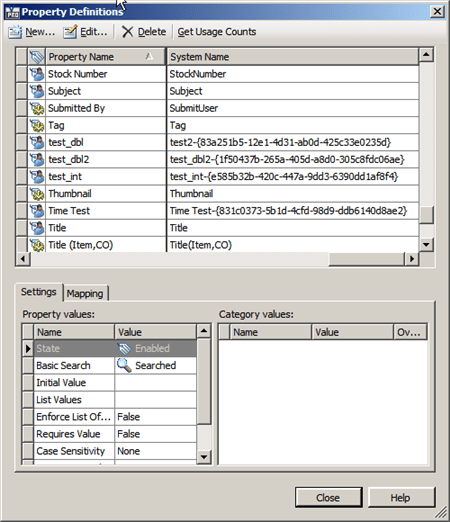
Note that the systems names are nice and simple.  However any UDPs that you create will have a randomly generated GUID attached to them.  So the system name is not a good way to look up UDPs.

How to look up a mapped property
Sometimes all you care about is the file property and you want to see the vault PropDef that has a read mapping to that file property.  Hardcoding the system name isn't helpful since UDP names and property mappings may change from vault to vault.

What you need is to find the moniker for the file property and use that file to find the vault PropDef.  Note: there may be no mappings or multiple mappings to the file property.

// the moniker for the "Company" property in an Inventor file.

string moniker = "15!{D5CDD502-2E9C-101B-9397-08002B2CF9AE}!nvarchar";

List<PropDefInfo> mappedToContent = new List<PropDefInfo>();
foreach (PropDefInfo propDef in propDefs)
{
    bool matchFound = false;

    if (propDef.EntClassCtntSrcPropCfgArray == null)
        continue;

    foreach (EntClassCtntSrcPropCfg contentSource in propDef.EntClassCtntSrcPropCfgArray)
    {
        if (contentSource.EntClassId != "FILE" || contentSource.CtntSrcPropDefArray == null)
            continue;

        for (int i = 0; i < contentSource.CtntSrcPropDefArray.Length; i++)
        {
            if (contentSource.CtntSrcPropDefArray[i].Moniker == moniker &&
                contentSource.MapDirectionArray[i] == MappingDirection.Read)
            {
                mappedToContent.Add(propDef);
                matchFound = true;
                break;
            }
        }
        if (matchFound)
            break;
    }
}


' the moniker for the "Company" property in an Inventor file.
Dim moniker As String = "15!{D5CDD502-2E9C-101B-9397-08002B2CF9AE}!nvarchar"

Dim mappedToContent As New List(Of PropDefInfo)()
For Each propDef As PropDefInfo In propDefs
      Dim matchFound As Boolean = False

      If propDef.EntClassCtntSrcPropCfgArray Is Nothing Then
            Continue For
      End If

      For Each contentSource As EntClassCtntSrcPropCfg In propDef.EntClassCtntSrcPropCfgArray
            If contentSource.EntClassId <> "FILE" OrElse contentSource.CtntSrcPropDefArray Is Nothing Then
                  Continue For
            End If

            For i As Integer = 0 To contentSource.CtntSrcPropDefArray.Length – 1
                  If contentSource.CtntSrcPropDefArray(i).Moniker = moniker AndAlso contentSource.MapDirectionArray(i) = MappingDirection.Read Then
                        mappedToContent.Add(propDef)
                        matchFound = True
                        Exit For
                  End If
            Next
            If matchFound Then
                  Exit For
            End If
      Next
Next

How to find the moniker
This is a bit tricky.  I don't recommend trying to figure out the syntax we use.  Instead I recommend the following:

  1. Create a new UDP and map it to the property within the file.
  2. Write a code snippet that gets the PropDefInfo object for your UDP.
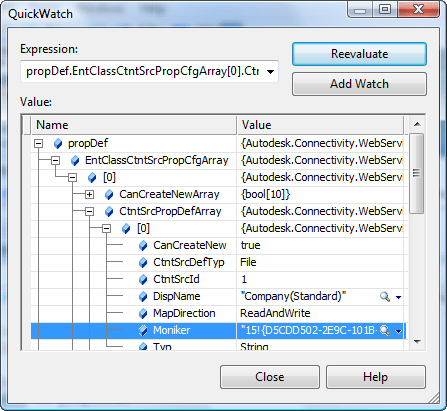
  3. In the debugger expand out the EntClassCtntSrcPropCfgArray of the PropDefInfo object.
  4. You should be able to find the mapping along with the moniker value.
  5. Copy the moniker value into your code.
How to find the CtntSrc object for a file
CtntSrc is the object representing a content source provider.  Each file will have 1 and only 1 provider.  You can locate the correct object using the Provider system property on a file.

IEnumerable<PropDefInfo> results = propDefInfos.Where(prop => prop.PropDef.SysName == "Provider");
PropDefInfo providerProp = results.First();

PropInst[] values = propSvc.GetProperties("FILE", new long[] { file.Id }, new long[] { providerProp.PropDef.Id });
string providerName = (string)values[0].Val;

ServerCfg config = adminSvc.GetServerConfiguration();

IEnumerable<CtntSrc> providers = config.CtntSrcArray.Where(source => source.DispName == providerName);
if (providers.Count() == 0)
    providers = config.CtntSrcArray.Where(source => source.SysName == "IFilter");
CtntSrc provider = providers.First();


Dim
results As IEnumerable(Of PropDefInfo) = From propDefInfo In propDefInfos _
      Where propDefInfo.PropDef.SysName = "Provider" _
      Select propDefInfo
Dim providerProp As PropDefInfo = results.First()

Dim values As PropInst() = propSvc.GetProperties("FILE", New Long() {file.Id}, New Long() {providerProp.PropDef.Id})
Dim providerName As String = DirectCast(values(0).Val, String)

Dim config As ServerCfg = adminSvc.GetServerConfiguration()

Dim providers As IEnumerable(Of CtntSrc) = From source In config.CtntSrcArray _
      Where source.DispName = providerName _
      Select source
If providers.Count() = 0 Then
      providers = config.CtntSrcArray.Where(Function(source) source.SysName = "IFilter")
End If
Dim provider As CtntSrc = providers.First()

Note:  "IFilter" is the system name to the "All Files" provider.  This should be used if the provider value is blank or there is no match to any other provider.

How to update a UDP value on a file
There are two ways of doing this.  The correct way depends on if the UDP is mapped or not.

The unmapped UDP is the simple case, you just call UpdateFileProperties.  If the UDP has a read mapping, UpdateFileProperties will not help you.  The reason is because when the file is checked in, the file's internal value will overwrite the UDP value you just set.  The correct thing to do is to update the property inside the local file before checking it back in to Vault.  This means that you need to use the appropriate CAD API to set the file data.  Once the file is checked in, the Vault server will update the mapped UDP value

// TODO: checkout file

if (isMapped)
{
    // TODO: update local file with CAD API
}
else
{
    // TODO: call UpdateFileProperties
}

// TODO: checkin file

How to tell if a UDP is mapped

Here is code to determine if a property has a read mapping or not.  Since each provider sets its own mappings, you need the CtntSrc object from the earlier section.

IEnumerable<PropDefInfo> results = propDefInfos.Where(prop => prop.PropDef.Id == propDefId);
PropDefInfo theProperty = results.First();

bool isMapped = false;
if (theProperty.EntClassCtntSrcPropCfgArray != null)
{
    foreach (EntClassCtntSrcPropCfg contentSource in theProperty.EntClassCtntSrcPropCfgArray)
    {
        if (contentSource.EntClassId != "FILE" || contentSource.CtntSrcPropDefArray == null)
            continue;

        for (int i=0; i < contentSource.CtntSrcPropDefArray.Length; i++) 
        {
            if (contentSource.CtntSrcPropDefArray[i].CtntSrcId == provider.Id &&
                contentSource.MapDirectionArray[i] == MappingDirection.Read)
            {
                isMapped = true;
            }
        }
    }
}

Dim results As IEnumerable(Of PropDefInfo) = From prop In propDefInfos _
      Where prop.PropDef.Id = propDefId _
      Select prop
Dim theProperty As PropDefInfo = results.First()

Dim isMapped As Boolean = False
If theProperty.EntClassCtntSrcPropCfgArray IsNot Nothing Then
      For Each contentSource As EntClassCtntSrcPropCfg In theProperty.EntClassCtntSrcPropCfgArray
            If contentSource.EntClassId <> "FILE" OrElse contentSource.CtntSrcPropDefArray Is Nothing Then
                  Continue For
            End If

            For i As Integer = 0 To contentSource.CtntSrcPropDefArray.Length – 1

                  If contentSource.CtntSrcPropDefArray(i).CtntSrcId = provider.Id AndAlso contentSource.MapDirectionArray(i) = MappingDirection.Read Then
                        isMapped = True
                  End If
            Next
      Next
End If

Conclusion
That's all I have planned for my series on properties.  If more questions/issues come in, I may decide to add a part 5.
Thanks to everyone for all the great feedback.

Coming in July:  A series of articles on connected workgroups (aka. Replication)


Comments

19 responses to “Properties in Vault 2011 – Part 4”

  1. Nathan Bell Avatar
    Nathan Bell

    Hello. Is there a way to ensure that when using batch plot all the iproperties and mass properties are updated? I ask because lately when a project is finished and someone wants a set of drawings, the batch plot command prints out every bill of material in every drawing differently- some with the iproperties right in the BOM and some with no properties. Often times the BOM is right but in assemblies the mtotal mass still says “NA”. I can print out each drawing individually and update all properties one at a time, but if there are 100 drawings in a set that can take hours on end.

  2. You can’t alter the batch plot command.
    One option is to write your own batch plot command. That way you can control exactly what gets plotted.
    If you think Vault is incorrectly plotting the wrong data, please let our product support team know.

  3. Forrest Judd Avatar
    Forrest Judd

    If a UDP is mapped from Vault to the document only, UpdateFileProperties will still work, right?

  4. That depends on what you mean by working. The value should update properly in Vault. But the file itself will still have the old value. File modification always has to be done client-side.

  5. Hi,
    I’m on the beginig.
    Could someone help me, I tryed to update an item property in this way:
    m_mgr.ItemService.UpdateItemProperties({selection.Id}, {60}, {“test”})
    but i get allways this soap error:
    soap exception 1321.
    I’m secure the item selection is correct.What’s wrong?
    Thanks

  6. The first parameter to UpdateItemProperties should be an array of Revision IDs. You are passing in the selection ID, which is the the Item ID. Item ID is different than Revision ID.
    Call GetItemsByIds to find the Revision ID.
    See this article for more info on selection.Id values: http://justonesandzeros.typepad.com/blog/2011/06/file-versions-and-links-in-the-selection-set.html

  7. You’ve been very kind to answer me so quikly, I replaced Id with RevId but now I have the error soap 3933, why?
    I put in my code:
    m_mgr.ItemService.GetItemDeleteRestrictionsByIds({81})
    m_mgr.ItemService.UpdateItemProperties({81}, {60}, {“test”})
    Could you help me?
    Nicole

  8. Did you call EditItem before calling UpdateItemProperties?
    If you want to see an example, go to the Vault Customization discussion group: http://forums.autodesk.com/t5/Autodesk-Vault-Customization/Populating-Item-UDPs/m-p/3643626/highlight/true#M1018

  9. Thanks for your answer,
    all is working for udp
    but why the property 60 ‘Description (Item, CO)’ can’t be edited in the same way?
    bie
    Nicole

  10. Description is a system property. You can’t edit those directly. File Size is a better example. The system automatically handles that value. It makes no sense to update that value with an UpdateProperties function.
    Also, don’t assume that Description will have a value of 60. That might not be true for all Vaults, and it might not be true if you upgrade to the next release. Use the system name if you want a reliable key.

  11. I have a few questions, we have a custome UDP called Title which contains information from various title blocks in inventor and autocad. Is there a way to retrieve this property for a file from vault easily?
    a .GetPropertyByFileID(FileID, “Title”) sort of function?

  12. Hello Doug,
    We have situation which lead to conclusion that properties update makes file ‘dirty’, that’s mean trigger checked out/update/bump the version any other assembly using this file.
    The issue is explained below with two scenarios:
    Scenario 1:
    1. open file from the vault (no files in C-drive workspace)
    2. Hit OK for Check-out the file:
    3. Message will appear about updating the properties:” Some prperties in the file … may be out of the date. Would you like to update properties now?”
    4. For this Scenario 1 choose “Yes”, and the result :file is dirty (with*):
    Scenario 2:
    1. open the same file from the vault (no files in C-drive workspace )
    2. Hit OK for Check out the file.
    3. Message will appear:” Some prperties in the file … may be out of the date. Would you like to update properties now?”
    4. For this Scenario 2 choose “No”, and result is file is clean:
    Conclusion: properties updates make files dirty and it constantly dirty every time when this file is checked-out.
    Qestions:
    1. How to fix issue with constant ‘dirty’ files after updating properties?
    2. Where to start to resolve this?
    3. How to see which particular properties are ’out of the date?’
    Thank you

  13. Yes, an update of properties results in a new file version.
    It sounds like your issues are with the product itself and not the API. I suggest posting your questions to the Vault discussion group: http://forums.autodesk.com/t5/Autodesk-Vault/bd-p/101

  14. Is it possible to update the Comment field of an earlier version. The…our…revision table is set to use the comment field as the Description of the changes made. However, human error as it is…people sometimes forget to enter the changes before clicking OK when changing the state back to Released. I’d like to be able to right click on a version and add those comments after the fact. I have my extension to the point of adding comments to a form…I just can’t figure out how to persist those comments to the drawing file.

  15. Sorry, you can’t edit historical comments.
    I recommend making Comment a required property and putting a condition on the state change that Property Compliance must be true. That will prevent people from releasing files that have an empty comment.

  16. Thanks.

  17. “A comment string set by the user. If CheckedOut is true, then this property contains the comment set during checkout. If CheckedOut is false, then this property contains the comment set during check-in. Checking in a file, resets the comment for that version.” Taken from the VaultAPI documentation. Reading that, shouldn’t I be able to check out the version in question and update the comment on check in. Will this create a new version? In essence rolling back the part or will it just update that version?

  18. No, because the new version is created at checkout time, not checkin time.
    For example, you add a new file to vault. So there is only one version of the file. When you run the checkout command, v2 is immediately created. The checkout comment is on v2 and v1 has the comment that was provided when the file was initially added.

  19. Hi Doug
    I want to update a UDP using VaultExplorerUtil on AddFileEvents_Post event of DocumentService, it works fine from explorer client on AddFiles event for non cad files.
    but When i checkin a file using Autocad Vault client (from vault Ribbon tab) Extention update the file property but Autocad Crash after update action.
    VaultExplorerUtil.UpdateFileProperties(file, dic);
    Autocad popup message box with error An error occurred during a vaulting operation.
    I have posted on vault customization board but no luck.
    can you please help.
    Thanks

Leave a Reply

Discover more from Autodesk Developer Blog

Subscribe now to keep reading and get access to the full archive.

Continue reading