
Hi, I'm Michal Liu, a developer on PLM 360. I will be showing you how to get the most out of PLM scripting.
PLM 360 scripting is a JavaScript-influenced language, which is customized to work with PLM. It gives users ability to extend the core functionalities or customize them to achieve various business goals. The language is designed for every user, not just for veteran programmers. If you do have some programming background, it will help you to grasp JavaScript quickly. However, if your programming background is zero, you will still be able to write some simple but pragmatic code by reading the "Help Guide". Other than the guide, you also can get the help from PLM 360 General Discussion forum and this blog.
As this is my first post, I am going to walk through the process to create and run a simple script code. In future posts, I will dive into some topics like script types, triggers, script chain, programming tabs and so on. For now, let's just build a "hello world" code.
Prerequisite:
- You need to be logged in as an administrator, otherwise you won't be able to create scripts.
- Make sure you have a workspace W having a "Single Line Text" field named "Title".
- You also need "Edit Items" permission for workspace W.
Step 1: Write some code
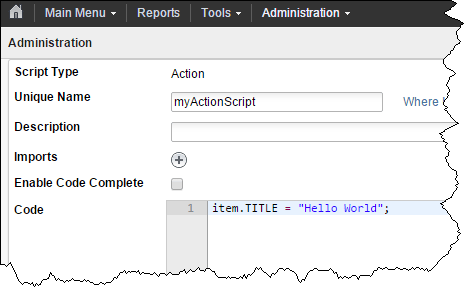
To create a script code, you need go to Administration -> System Configuration -> Scripting -> click "New Script" button on the top left of the page.
- Leave "Script Type" as default type "Action".
- Give it a "Unique Name". e.g. myActionScript. (The unique name must be between 3 and 50 characters.)
- You can leave the "Description", "Imports" and "Enable Code Complete" as they are for now.
- Put the below text into "Code" and click Save button.
item.TITLE = "Hello World";
Step 2: Configure the script into workspace W
Go to Administration -> Workspace Manager -> W -> Behaviors. Select "myActionScript" for "Script to run on demand". After the selection, another row of "Script to run on demand" pops up. It's okay. Click Save.
Step 3: Run the script
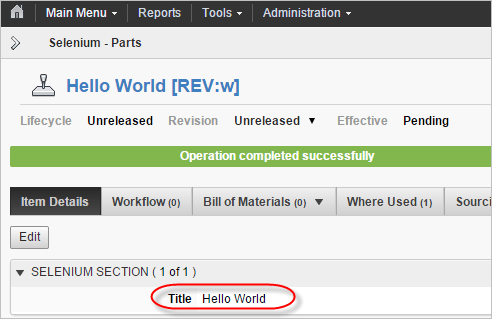
Go to an item's page from workspace W. Click the script icon; click Confirm in the popped up dialog.
 If everything are correct so far. You will see a green bar saying "Operation completed successfully", and now the Title field will be changed to "Hello World".


Leave a Reply