
<?xml encoding=”UTF-8″>By Adam Nagy
When you switch to “Tube & Pipe” environment …
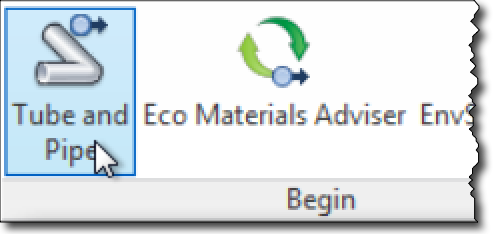
… then before the “Create Tube & Pipe Run” dialog pops up, the OnPopulateFileMetadata event of the FileUIEvents object will be called, which we can handle. To handle events we need a class, so I created one called “clsEvents” in VBA:

' Code of clsEvents Class
Dim WithEvents oFE As FileUIEvents
Private Sub Class_Initialize()
Set oFE = ThisApplication.FileUIEvents
End Sub
Private Sub oFE_OnPopulateFileMetadata( _
ByVal FileMetadataObjects As ObjectsEnumerator, _
ByVal Formulae As String, _
ByVal Context As NameValueMap, _
HandlingCode As HandlingCodeEnum)
' Unfortunately the Context is not filled with info
' in case of the Tube & Pipe dialog
' so we can only figure out if this event was
' fired by it through checking the metadata
' If not the correct amount of data, we're done
If FileMetadataObjects.Count <> 2 Then Exit Sub
Dim fmd1 As FileMetadata
Set fmd1 = FileMetadataObjects(1)
' If the suggested assembly file name does not
' contain "Tube and Pipe Runs", we're done
If InStr(1, fmd1.FileName, "Tube and Pipe Runs") < 1 Then Exit Sub
Dim fmd2 As FileMetadata
Set fmd2 = FileMetadataObjects(2)
fmd1.FullFileName = "C:tempmyrunsruns.iam"
fmd2.FullFileName = "C:tempmyrunsmyrun1run1.iam"
HandlingCode = kEventHandled
End Sub
In order to start listening to this event we need to instantiate our class and keep a global reference to it. This could be done e.g. inside a VBA module. If you also want your command to automatically start the Tube & Pipe environment then you can do it as shown in the below code, based on this blog post: http://modthemachine.typepad.com/my_weblog/2009/03/running-commands-using-the-api.html
' Global reference to the event listener
Dim oEvents As clsEvents
Sub StartListeningToEvents()
Set oEvents = New clsEvents
' Uncomment below code if you want to start the
' Tube & Pipe environment
'Dim oCDs As ControlDefinitions
'Set oCDs = ThisApplication.CommandManager.ControlDefinitions
'Dim oCD As ControlDefinition
'Set oCD = oCDs("HSL:Piping:CreatePipeRun")
'Call oCD.Execute
End Sub
And this change will be reflected in the dialog:

If we click OK, we end up with a model like this:

You can also hook up your VBA macro to a button in the UI following this blog post:
http://modthemachine.typepad.com/my_weblog/2010/03/buttons-for-vba-macros-in-the-ribbon-user-interface.html


Leave a Reply to AdrianCancel reply