
We have finished our script. However, the parameters are written and can’t be modified. We want to allow the users to change them easily, so we’ll add an interface to it.
Meanwhile, accessing though the Script/Add-in menu is quite annoying. We would like to create a button in the design workspace for it.
In this tutorial we’ll cover these topics.
The source codes for C++ and Python are available.

Building an add-in could be different with Python and C++ when using Fusion API. Python provides a template by default which makes the job easier. Meanwhile, you’ll have to write it from scratch when using C++. You can also write like C++ if you don’t want to use the template.
In this tutorial, we’ll begin with the template for Python.
After creating an add-in, we’ll have a project structure like below.

Same as the script, they entry point is in the BasicAddin.py. Let’s take a look at it.
# Assuming you have not changed the general structure of the template no modification is needed in this file.
from . import commands
from .lib import fusionAddInUtils as futil

def run(context):
    try:
        # This will run the start function in each of your commands as defined in commands/__init__.py
        commands.start()

    except:
        futil.handle_error('run')


def stop(context):
    try:
        # Remove all of the event handlers your app has created
        futil.clear_handlers()

        # This will run the start function in each of your commands as defined in commands/__init__.py
        commands.stop()

    except:
        futil.handle_error('stop')
Like a script, an add-in also begins with run. However, unlike the script, the add-in will be keep running after loaded. The user will need to unload it manually. So, there is a stop function for cleaning up. Fusion will call it when the add-in is unloaded.
In the run function, there is only one line of code.
commands.start()Let’s have a look at the __init__.py inside the commands module.
# Here you define the commands that will be added to your add-in.

# TODO Import the modules corresponding to the commands you created.
# If you want to add an additional command, duplicate one of the existing directories and import it here.
# You need to use aliases (import "entry" as "my_module") assuming you have the default module named "entry".
from .commandDialog import entry as commandDialog
from .paletteShow import entry as paletteShow
from .paletteSend import entry as paletteSend

# TODO add your imported modules to this list.
# Fusion will automatically call the start() and stop() functions.
commands = [
commandDialog,
paletteShow,
paletteSend
]


# Assumes you defined a "start" function in each of your modules.
# The start function will be run when the add-in is started.
def start():
    for command in commands:
        command.start()


# Assumes you defined a "stop" function in each of your modules.
# The stop function will be run when the add-in is stopped.
def stop():
    for command in commands:
        command.stop()
The start method in commands will register your commands by calling the start method of your actual commands one by one. In this tutorial, we only have one command to register, and we’ll reuse the template.
Let’s rename the commandDialog folder as createBox and delete other two folders. We also need to update the import and commands array like below:
from .createBox import entry as createBox

# TODO add your imported modules to this list.
# Fusion will automatically call the start() and stop() functions.
commands = [
createBox
]
Before we are going to implement our command, we need to update the global variables also. It provides some const values we’ll use later. Open the config.py and update like below.
# Application Global Variables
# This module serves as a way to share variables across different
# modules (global variables).

import os


# Flag that indicates to run in Debug mode or not. When running in Debug mode
# more information is written to the Text Command window. Generally, it's useful
# to set this to True while developing an add-in and set it to False when you
# are ready to distribute it.
DEBUG = True

# Gets the name of the add-in from the name of the folder the py file is in.
# This is used when defining unique internal names for various UI elements
# that need a unique name. It's also recommended to use a company name as
# part of the ID to better ensure the ID is unique.
#ADDIN_NAME = os.path.basename(os.path.dirname(__file__))
ADDIN_NAME = "BoxCreator"
COMPANY_NAME = 'ACME'

# Palettes
sample_palette_id = f'{COMPANY_NAME}_{ADDIN_NAME}_palette_id'
toolbar_id = "ToolsTab"
toolbar_name = "BoxTools"

my_panel_id = f'{ADDIN_NAME}_panel'
my_panel_name = ADDIN_NAME
my_panel_after = ''
We have defined some const values for the panel, toolbar and apps.Now we can focus on our command.
Let’s check the directory structure of createBox folder.
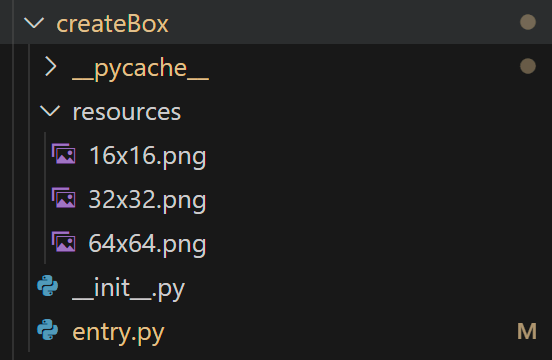
It has a resource folder, which stores the icons for our add-in.
The entry.py file is where we are going to implement our command. Let’s open and edit it.
Replace the const values between ui = app.userInterface and ICON_FOLDER with following values.
# Don't forget our epsilon in the script!
epsilon = 1e-6

# TODO *** Specify the command identity information. ***
CMD_ID = f'{config.COMPANY_NAME}_{config.ADDIN_NAME}_cmdBoxDialog'
CMD_NAME = 'Creating a box'
CMD_Description = 'A Fusion Add-in Command for create a box'

# Specify that the command will be promoted to the panel.
IS_PROMOTED = True

# TODO *** Define the location where the command button will be created. ***
# This is done by specifying the workspace, the tab, and the panel, and the
# command it will be inserted beside. Not providing the command to position it
# will insert it at the end.

WORKSPACE_ID = 'FusionSolidEnvironment'
TAB_ID = config.toolbar_id
TAB_NAME = config.toolbar_name

PANEL_ID = config.my_panel_id
PANEL_NAME = config.my_panel_name
PANEL_AFTER = config.my_panel_after
Now let’s copy our script next. We need the BoxParameters dataclass and create_box function.
Here, I am going to make some changes, we’ll add a member called input units in the BoxParameters.
The reason here is if we are going to convert it into a design automation application, we may want to allow user to specify a unit.
We also need to update the unit conversion part of the original code. The fillet size is no longer a const value, we also want to convert it to internal unit. Here is the updated code:
# Let’s copy our code here, we’ll need input units here. @dataclass class BoxParameters: border_thickness : float bottom_thickness : float inner_width : float inner_length : float inner_height : float fillet_size : float input_units : str def __init__(self, border_thickness: float, bottom_thickness:float, inner_width:float, inner_length:float, inner_height:float, fillet_size:float, input_units:str): self.border_thickness = border_thickness self.bottom_thickness = bottom_thickness self.inner_width = inner_width self.inner_length = inner_length self.inner_height = inner_height self.fillet_size = fillet_size self.input_units = input_units def create_box(design: adsk.fusion.Design, parameter: BoxParameters, margin: float, body_name:str, component_name:str)->adsk.fusion.Component: # Gets the value from the parameters input_units = parameter.input_units border_thickness = parameter.border_thickness bottom_thickness = parameter.bottom_thickness inner_width = parameter.inner_width inner_length = parameter.inner_length inner_height = parameter.inner_height fillet_size = parameter.fillet_size # We may take different input units than default units in Fusion. We’ll need to convert them first. units_manager = design.fusionUnitsManager default_units = units_manager.internalUnits border_thickness = units_manager.convert(border_thickness, input_units, default_units) bottom_thickness = units_manager.convert(bottom_thickness, input_units, default_units) inner_width = units_manager.convert(inner_width, input_units, default_units) inner_length = units_manager.convert(inner_length, input_units, default_units) inner_height = units_manager.convert(inner_height, input_units, default_units) fillet_size = units_manager.convert(fillet_size, input_units, default_units) margin = units_manager.convert(margin, input_units, default_units)Let’s create a button for our script first.
Update start method with following code:
# Executed when add-in is run.
def start():
    # Create a command Definition.
    cmd_def = ui.commandDefinitions.addButtonDefinition(CMD_ID, CMD_NAME, CMD_Description, ICON_FOLDER)

    # Define an event handler for the command created event. It will be called when the button is clicked.
    futil.add_handler(cmd_def.commandCreated, command_created)

    # ******** Add a button into the UI so the user can run the command. ********
    # Get the target workspace the button will be created in.
    workspace = ui.workspaces.itemById(WORKSPACE_ID)

    # Get target toolbar tab for the command create the tab if necessary.
    toolbar_tab = workspace.toolbarTabs.itemById(TAB_ID)
    if toolbar_tab is None:
        toolbar_tab = workspace.toolbarTabs.add(TAB_ID, TAB_NAME)

    # Get the panel the button will be created in.
    panel = toolbar_tab.toolbarPanels.itemById(PANEL_ID)
    if panel is None:
        panel = toolbar_tab.toolbarPanels.add(PANEL_ID, PANEL_NAME, PANEL_AFTER, False)

    # Create the button command control in the UI after the specified existing command.
    control = panel.controls.addCommand(cmd_def)

    # Specify if the command is promoted to the main toolbar.
    control.isPromoted = IS_PROMOTED
We created a button definition with ui.commandDefinitions.addButtonDefinition and bind its commandCreate event with our callback. We’ll create a dialog in the command create event as user input.
Then we’ll try to find the design workspace and add our tab to it. We also want to add a panel to our tab. Finally, we’ll add the button to the panel and ask Fusion to promote it.
Next, we’ll update the command_create method.
# Function that is called when a user clicks the corresponding button in the UI.
# This defines the contents of the command dialog and connects to the command related events.
def command_created(args: adsk.core.CommandCreatedEventArgs):
    # General logging for debug.
    futil.log(f'{CMD_NAME} Command Created Event')

    # https://help.autodesk.com/view/fusion360/ENU/?contextId=CommandInputs
    inputs = args.command.commandInputs


    # Let's add our input here, we'll need to convert our previous default value into the display units when creating a display default value.
    defaultLengthUnits = app.activeProduct.unitsManager.defaultLengthUnits
    units_manager = app.activeProduct.unitsManager

    default_value_border_thickness = adsk.core.ValueInput.createByString(f'{units_manager.convert(4.0, 'mm', defaultLengthUnits)}')

    inputs.addValueInput('border_thickness', 'Border Thickness', defaultLengthUnits, default_value_border_thickness)

    default_value_bottom_thickness = adsk.core.ValueInput.createByString(f'{units_manager.convert(4.0, 'mm', defaultLengthUnits)}')
    inputs.addValueInput('bottom_thickness', 'Bottom/Top Thickness', defaultLengthUnits, default_value_bottom_thickness)

    default_value_inner_width = adsk.core.ValueInput.createByString(f'{units_manager.convert(190.0, 'mm', defaultLengthUnits)}')
    inputs.addValueInput('inner_width', 'Inner Width', defaultLengthUnits, default_value_inner_width)

    default_value_inner_length = adsk.core.ValueInput.createByString(f'{units_manager.convert(390.0, 'mm', defaultLengthUnits)}')
    inputs.addValueInput('inner_length', 'Inner Length', defaultLengthUnits, default_value_inner_length)

    default_value_bottom_inner_height = adsk.core.ValueInput.createByString(f'{units_manager.convert(110.0, 'mm', defaultLengthUnits)}')
    inputs.addValueInput('bottom_inner_height', 'Bottom Box Inner Height', defaultLengthUnits, default_value_bottom_inner_height)

    default_value_lid_inner_height = adsk.core.ValueInput.createByString(f'{units_manager.convert(30.0, 'mm', defaultLengthUnits)}')
    inputs.addValueInput('lid_inner_height', 'Lid Box Inner Height', defaultLengthUnits, default_value_lid_inner_height)

    default_value_fillet = adsk.core.ValueInput.createByString(f'{units_manager.convert(0.5, 'mm', defaultLengthUnits)}')
    inputs.addValueInput('fillet', 'Fillet Size', defaultLengthUnits, default_value_fillet)


    # TODO Connect to the events that are needed by this command.
    futil.add_handler(args.command.execute, command_execute, local_handlers=local_handlers)
    futil.add_handler(args.command.inputChanged, command_input_changed, local_handlers=local_handlers)
    futil.add_handler(args.command.executePreview, command_preview, local_handlers=local_handlers)
    futil.add_handler(args.command.validateInputs, command_validate_input, local_handlers=local_handlers)
    futil.add_handler(args.command.destroy, command_destroy, local_handlers=local_handlers)
First, let’s get the CommandInputs of our command.
inputs = args.command.commandInputs
We’ll create our input fields. But first, we also need to convert our default values to the user selected units.
defaultLengthUnits = app.activeProduct.unitsManager.defaultLengthUnits
units_manager = app.activeProduct.unitsManager

default_value_border_thickness = adsk.core.ValueInput.createByString(f'{units_manager.convert(4.0, 'mm', defaultLengthUnits)}')
inputs.addValueInput('border_thickness', 'Border Thickness', defaultLengthUnits, default_value_border_thickness)
We have used unitsManager to convert values. We’ll create a ValueInput first and add it to the commandInputs.
Repeat it for rest of the fields. Finally, we’ll add some events when the command is triggered.
# TODO Connect to the events that are needed by this command. futil.add_handler(args.command.execute, command_execute, local_handlers=local_handlers) futil.add_handler(args.command.inputChanged, command_input_changed, local_handlers=local_handlers) futil.add_handler(args.command.executePreview, command_preview, local_handlers=local_handlers) futil.add_handler(args.command.validateInputs, command_validate_input, local_handlers=local_handlers) futil.add_handler(args.command.destroy, command_destroy, local_handlers=local_handlers)The local_handlers are the global value we store the event handles. We’ll remove those events in the destroy event.
We’ll need to update validateInputs and execute events in this tutorial. The rest of events we don’t need it here.
Before execute the event, Fusion will call validateInputs first, if the value doesn’t meet the requirement, we can stop the command from executing.
# This event handler is called when the user interacts with any of the inputs in the dialog
# which allows you to verify that all of the inputs are valid and enables the OK button.
def command_validate_input(args: adsk.core.ValidateInputsEventArgs):
    # General logging for debug.
    futil.log(f'{CMD_NAME} Validate Input Event')

    inputs = args.inputs
    # Verify the validity of the input values. This controls if the OK button is enabled or not.
    border_thickness = inputs.itemById('border_thickness')
    bottom_thickness = inputs.itemById('bottom_thickness')
    inner_width = inputs.itemById('inner_width')
    inner_length = inputs.itemById('inner_length')
    bottom_inner_height = inputs.itemById('bottom_inner_height')
    lid_inner_height = inputs.itemById('lid_inner_height')
    fillet = inputs.itemById('fillet')

    args.areInputsValid = True

    if border_thickness.value <= 0:
        args.areInputsValid = False
        return

    if bottom_thickness.value <= 0:
        args.areInputsValid = False
        return

    if inner_width.value <= 0:
        args.areInputsValid = False
        return

    if inner_length.value <= 0:
        args.areInputsValid = False
        return

    if bottom_inner_height.value <= 0:
        args.areInputsValid = False
        return

    if lid_inner_height.value <= 0:
        args.areInputsValid = False
        return

    if fillet.value <= 0:
        args.areInputsValid = False
        return
We can get a field with id by using itemById method. Here we only check if the value is greater than 0. If it is a negative number, we’ll set the areInputsValid false to stop the command from executing.
The last part is updating the execute callback. We could copy and modify the code inside run method of our script. Here is the updated code:
# This event handler is called when the user clicks the OK button in the command dialog or
# is immediately called after the created event not command inputs were created for the dialog.
def command_execute(args: adsk.core.CommandEventArgs):
    # General logging for debug.
    futil.log(f'{CMD_NAME} Command Execute Event')

    # TODO ******************************** Your code here ********************************

    # Get a reference to your command's inputs.
    inputs = args.command.commandInputs

    border_thickness: adsk.core.ValueCommandInput = inputs.itemById('border_thickness')
    bottom_thickness: adsk.core.ValueCommandInput = inputs.itemById('bottom_thickness')
    inner_width: adsk.core.ValueCommandInput = inputs.itemById('inner_width')
    inner_length: adsk.core.ValueCommandInput = inputs.itemById('inner_length')
    bottom_inner_height: adsk.core.ValueCommandInput = inputs.itemById('bottom_inner_height')
    lid_inner_height: adsk.core.ValueCommandInput = inputs.itemById('lid_inner_height')
    fillet: adsk.core.ValueCommandInput = inputs.itemById('fillet')

    design = adsk.fusion.Design.cast(app.activeProduct)


    # It returns value in cm, so, let's create our objects based in cm.
    # In previous script, our units is mm, so here let's divide it by 10 to convert it into cm.
    base_margin = 5.0
    bottom_box_parameters = BoxParameters(border_thickness = border_thickness.value,
                                          bottom_thickness = bottom_thickness.value,
                                          inner_width = inner_width.value,
                                          inner_length = inner_length.value,
                                          inner_height = bottom_inner_height.value,
                                          fillet_size = fillet.value,
                                          input_units = 'cm')

    top_enlarge_size = border_thickness.value * 2

    top_box_parameters = BoxParameters(border_thickness = border_thickness.value,
                                       bottom_thickness = bottom_thickness.value,
                                       inner_width = inner_width.value + top_enlarge_size,
                                       inner_length = inner_length.value + top_enlarge_size,
                                       inner_height = lid_inner_height.value,
                                       fillet_size = fillet.value,
                                       input_units = 'cm')

    if not design:
        ui.messageBox("The DESIGN workspace must be active when running this command.")
        return
    create_box(design, bottom_box_parameters, (-bottom_box_parameters.inner_width - bottom_box_parameters.border_thickness) / 2.0 - base_margin, "bottom_body", "box")
    create_box(design, top_box_parameters, base_margin + (top_box_parameters.border_thickness + top_box_parameters.inner_width) / 2.0, "top_body", "lid")
We’ll get values from the dialog. It is same as the code in the validateInput. The internal value of Fusion is ‘cm’, so we’ll update the value of base_margin and make the input_units cm.
When we created an C++ add-in, we don’t have any resources like the Python add-ins. We’ll use the resources from one of the samples. Copy the resource folder of AddinSample to our project’s root folder.
First, let’s add some const variables and global variables.
double epsilon = 1e-6;

const std::string workspaceId("FusionSolidEnvironment");
const std::string toolbarId("ToolsTab");
const std::string toolbarName("BoxTools");

const std::string myPanelId("BoxCreator_panel");
const std::string myPanelName("BoxCreator");
const std::string myPanelAfter("");

const std::string cmdId("ACME_BoxCreator_cmdBoxDialog");
const std::string cmdName("Creating a box");
const std::string cmdDescription("A Fusion Add-in Command for create a box");

const std::string iconFolder("./resources");

static std::vector<Ptr<EventHandler>> eventHandlers;

CommandCreatedHandler* pCommandCreatedHandler = nullptr;
Ptr<CommandDefinition> pCommandDefininition = nullptr;

Ptr<ToolbarTab> pToolbarTab = nullptr;
Ptr<ToolbarPanel> pToolbarPanel = nullptr;

Ptr<CommandControl> pToolbarControl = nullptr;
We’ll store our event handlers in these global variables and release them later.
Let’s copy our struct and createBox method and modify some of it first.
typedef struct
{
    double borderThickness;
    double bottomThickness;
    double innerWidth;
    double innerLength;
    double innerHeight;
    double filletSize;
    std::string inputUnits;
} BoxParameters;

Ptr<Component> createBox(Ptr<Design> design, const BoxParameters& parameters, double margin, const std::string&
bodyName, const std::string& componentName)
{
    const std::string inputUnits = parameters.inputUnits;
    double borderThickness = parameters.borderThickness;
    double bottomThickness = parameters.bottomThickness;
    double innerWidth = parameters.innerWidth;
    double innerLength = parameters.innerLength;
    double innerHeight = parameters.innerHeight;
    double filletSize = parameters.filletSize;


    // We may take different input units than default units in Fusion. We'll need to convert them first.
    Ptr<UnitsManager> unitsManager = design->fusionUnitsManager();
    const std::string defaultUnits = unitsManager->internalUnits();
    borderThickness = unitsManager->convert(borderThickness, inputUnits, defaultUnits);
    bottomThickness = unitsManager->convert(bottomThickness, inputUnits, defaultUnits);
    innerWidth = unitsManager->convert(innerWidth, inputUnits, defaultUnits);
    innerLength = unitsManager->convert(innerLength, inputUnits, defaultUnits);
    innerHeight = unitsManager->convert(innerHeight, inputUnits, defaultUnits);
    // I'll keep fillet using mm since 0.5mm is hard to read when it converts to inches.
    filletSize = unitsManager->convert(filletSize, inputUnits, defaultUnits);
    margin = unitsManager->convert(margin, inputUnits, defaultUnits);
We’ve added an inputUnits in the parameter. If we are going to the convert our add-in to a design automation application in the future, it will allow the customer to specify a unit they are familiar with. We also make filletSize an input parameter, so filletSize will be converted too.
The rest of the code is same as before. Let’s begin with the entry then.
extern "C" XI_EXPORT bool run(const char* context)
{
    app = Application::get();
    if (!app)
        return false;

    ui = app->userInterface();
    if (!ui)
        return false;

    Ptr<Workspaces> workspaces = ui->workspaces();
    Ptr<Workspace> modelingWorkspace = workspaces->itemById("FusionSolidEnvironment");

    if (!modelingWorkspace)
        return false;
    Ptr<ToolbarTabs> toolbarTabs = modelingWorkspace->toolbarTabs();
    if (!toolbarTabs)
        return false;
    Ptr<ToolbarTab> toolbarTab = toolbarTabs->itemById(toolbarId);
    if (!toolbarTab)
    {
        toolbarTab = toolbarTabs->add(toolbarId, toolbarName);
        pToolbarTab = toolbarTab;
    }
    Ptr<ToolbarPanels> toolbarPanels = modelingWorkspace->toolbarPanels();
    if (!toolbarPanels)
        return false;
    Ptr<ToolbarPanel> toolbarPanel = toolbarPanels->itemById(myPanelId);
    if (!toolbarPanel)
    {
        toolbarPanel = toolbarPanels->add(myPanelId, myPanelName, myPanelAfter, false);
        pToolbarPanel = toolbarPanel;
    }


    pCommandDefininition = ui->commandDefinitions()->addButtonDefinition(cmdId, cmdName, cmdDescription, iconFolder);
    Ptr<CommandCreatedEvent> cmdCreatedEvent = pCommandDefininition->commandCreated();

    pCommandCreatedHandler = new CommandCreatedHandler();
    cmdCreatedEvent->add(pCommandCreatedHandler);

    pToolbarControl = toolbarPanel->controls()->addCommand(pCommandDefininition);
    pToolbarControl->isPromoted(true);

    return true;
}
We’ll get create our UI in the run method.
First, we’ll get the design workspace.
Ptr<Workspaces> workspaces = ui->workspaces();
Ptr<Workspace> modelingWorkspace = workspaces->itemById("FusionSolidEnvironment");

if (!modelingWorkspace)
    return false;
Then, we’ll create a toolbar tab for it.
Ptr<ToolbarTabs> toolbarTabs = modelingWorkspace->toolbarTabs();
if (!toolbarTabs)
    return false;
Ptr<ToolbarTab> toolbarTab = toolbarTabs->itemById(toolbarId);
if (!toolbarTab)
{
    toolbarTab = toolbarTabs->add(toolbarId, toolbarName);
    pToolbarTab = toolbarTab;
}
Ptr<ToolbarPanels> toolbarPanels = modelingWorkspace->toolbarPanels();
if (!toolbarPanels)
    return false;
Ptr<ToolbarPanel> toolbarPanel = toolbarPanels->itemById(myPanelId);
if (!toolbarPanel)
{
    toolbarPanel = toolbarPanels->add(myPanelId, myPanelName, myPanelAfter, false);
    pToolbarPanel = toolbarPanel;
}
At last, we’ll create a command definition and assign a command create event handler for it. We’ll add our command definition to the tab we’ve just created and promote it.
pCommandDefininition = ui->commandDefinitions()->addButtonDefinition(cmdId, cmdName, cmdDescription, iconFolder);
Ptr<CommandCreatedEvent> cmdCreatedEvent = pCommandDefininition->commandCreated();

pCommandCreatedHandler = new CommandCreatedHandler();
cmdCreatedEvent->add(pCommandCreatedHandler);

pToolbarControl = toolbarPanel->controls()->addCommand(pCommandDefininition);
pToolbarControl->isPromoted(true);
Next, we’ll create a command create event handler for our command. It will create a dialog with input fields and register required callbacks for it.
class CommandCreatedHandler : public adsk::core::CommandCreatedEventHandler
{
public:
	~CommandCreatedHandler() override
    {
        if (pCommand != nullptr)
        {
	        if (pCommandExecuteHandler != nullptr)
	        {
                Ptr<CommandEvent> executeEvent = pCommand->execute();
                executeEvent->remove(pCommandExecuteHandler);
                delete pCommandExecuteHandler;
                pCommandExecuteHandler = nullptr;
	        }
            if (pValidateInputHandler != nullptr)
            {
                Ptr<ValidateInputsEvent> validInputEvent = pCommand->validateInputs();
                validInputEvent->remove(pValidateInputHandler);
                delete pValidateInputHandler;
                pValidateInputHandler = nullptr;
            }
            pCommand = nullptr;
        }
    }

    CommandCreatedHandler() : CommandCreatedEventHandler()
    {
        pValidateInputHandler = nullptr;
        pCommandExecuteHandler = nullptr;
        pCommand = nullptr;
    }

    void notify(const Ptr<CommandCreatedEventArgs>& eventArgs) override
    {
        Ptr<UnitsManager> unitsManager = app->activeProduct()->unitsManager();
        std::string defaultLengthUnits = unitsManager->defaultLengthUnits();

        pCommand = eventArgs->command();
        Ptr<CommandInputs> inputs = pCommand->commandInputs();
        Ptr<CommandEvent> executeEvent = pCommand->execute();
        Ptr<ValidateInputsEvent> validInputEvent = pCommand->validateInputs();

        // We'll use createByReal here, its units is cm.
        Ptr<ValueInput> defaultBorderThickness = ValueInput::createByReal(0.4);
        inputs->addValueInput("border_thickness", "Border Thickness", defaultLengthUnits, defaultBorderThickness);

        Ptr<ValueInput> defaultBottomThickness = ValueInput::createByReal(0.4);
        inputs->addValueInput("bottom_thickness", "Bottom Thickness", defaultLengthUnits, defaultBottomThickness);

        Ptr<ValueInput> defaultInnerWidth = ValueInput::createByReal(19.0);
        inputs->addValueInput("inner_width", "Inner Width", defaultLengthUnits, defaultInnerWidth);

        Ptr<ValueInput> defaultInnerLength= ValueInput::createByReal(39.0);
        inputs->addValueInput("inner_length", "Inner Length", defaultLengthUnits, defaultInnerLength);

        Ptr<ValueInput> defaultBottomInnerHeight = ValueInput::createByReal(11.0);
        inputs->addValueInput("bottom_inner_height", "Bottom Box Inner Height", defaultLengthUnits, defaultBottomInnerHeight);

        Ptr<ValueInput> defaultLidInnerHeight = ValueInput::createByReal(3.0);
        inputs->addValueInput("lid_inner_height", "Lid Box Inner Height", defaultLengthUnits, defaultLidInnerHeight);

        Ptr<ValueInput> defaultFilletSize = ValueInput::createByReal(0.05);
        inputs->addValueInput("fillet", "Fillet Size", defaultLengthUnits, defaultFilletSize);


        pCommandExecuteHandler = new CommandExecutedHandler();
        pValidateInputHandler = new ValidateInputHandler();


        executeEvent->add(pCommandExecuteHandler);
        validInputEvent->add(pValidateInputHandler);
    }
private:
ValidateInputHandler* pValidateInputHandler;
CommandExecutedHandler* pCommandExecuteHandler;
Ptr<Command> pCommand;
};
Our command event handler should be a subclass of CommandCreatedEventHandler.
We’ll create our dialog by overriding notify method. We can get CommandInputs with the args and create input fields with ValueInput::createByReal. Note, the internal units inside Fusion is cm, so we’ll need to convert our previous default value in mms into cms.
At last, we’ll create and assign two event handlers. One is input validation, another one is executing. Before execute the event, Fusion will call ValidateInputsEvent first, if the value doesn’t meet the requirement, we can stop the command from executing.
We’ll clean up in the destructor. When cleaning up, we’ll remove the event first, and release the memory.
Next, we’ll implement two events. Let’s begin with ValidateInputsEvent. We also need to override the notify member.
class ValidateInputHandler : public adsk::core::ValidateInputsEventHandler
{
public:
    void notify(const Ptr<ValidateInputsEventArgs>& eventArgs) override
    {
        Ptr<CommandInputs> pCommandInputs = eventArgs->inputs();

        // Verify the validity of the input values.This controls if the OK button is enabled or not.

        Ptr<ValueCommandInput> pBorderThickness = pCommandInputs->itemById("border_thickness");
        Ptr<ValueCommandInput> pBottomThickness = pCommandInputs->itemById("bottom_thickness");
        Ptr<ValueCommandInput> pInnerWidth = pCommandInputs->itemById("inner_width");
        Ptr<ValueCommandInput> pInnerLength = pCommandInputs->itemById("inner_length");
        Ptr<ValueCommandInput> pBottomInnerHeight = pCommandInputs->itemById("bottom_inner_height");
        Ptr<ValueCommandInput> pLidInnerHeight = pCommandInputs->itemById("lid_inner_height");
        Ptr<ValueCommandInput> pFillet = pCommandInputs->itemById("fillet");

        eventArgs->areInputsValid(true);


        if (pBorderThickness->value() <= 0.0)
        {
            eventArgs->areInputsValid(false);
            return;
        }

        if (pBottomThickness->value() <= 0.0)
        {
            eventArgs->areInputsValid(false);
            return;
        }

        if (pInnerWidth->value() <= 0.0)
        {
            eventArgs->areInputsValid(false);
            return;
        }

        if (pInnerLength->value() <= 0.0)
        {
            eventArgs->areInputsValid(false);
            return;
        }

        if (pBottomInnerHeight->value() <= 0.0)
        {
            eventArgs->areInputsValid(false);
            return;
        }

        if (pLidInnerHeight->value() <= 0.0)
        {
            eventArgs->areInputsValid(false);
            return;
        }

        if (pFillet->value() <= 0.0)
        {
            eventArgs->areInputsValid(false);
        }
    }

};
We could get CommandInputs from eventArgs. The values of fields could be acquired with CommandInputs::itemById with field id. We’ll only do a basic check here: if it is a negative value, we’ll stop user from executing the command.
Next, we’ll create CommandEventHandler. It is modified run method of original script.
class CommandExecutedHandler : public adsk::core::CommandEventHandler
{
public:
    void notify(const Ptr<CommandEventArgs>& eventArgs) override
    {
        Ptr<Event> firingEvent = eventArgs->firingEvent();
        if (!firingEvent)
            return;

        Ptr<CommandInputs> pCommandInputs = eventArgs->command()->commandInputs();

        // Verify the validity of the input values.This controls if the OK button is enabled or not.

        Ptr<ValueCommandInput> pBorderThickness = pCommandInputs->itemById("border_thickness");
        Ptr<ValueCommandInput> pBottomThickness = pCommandInputs->itemById("bottom_thickness");
        Ptr<ValueCommandInput> pInnerWidth = pCommandInputs->itemById("inner_width");
        Ptr<ValueCommandInput> pInnerLength = pCommandInputs->itemById("inner_length");
        Ptr<ValueCommandInput> pBottomInnerHeight = pCommandInputs->itemById("bottom_inner_height");
        Ptr<ValueCommandInput> pLidInnerHeight = pCommandInputs->itemById("lid_inner_height");
        Ptr<ValueCommandInput> pFillet = pCommandInputs->itemById("fillet");

        Ptr<Design> design = app->activeProduct();
        if (!design)
        {
            ui->messageBox("The DESIGN workspace must be active when running this command.");
            return;
        }

        double baseMargin = 5.0;
        BoxParameters bottomBoxParameters;
        bottomBoxParameters.borderThickness = pBorderThickness->value();
        bottomBoxParameters.bottomThickness = pBottomThickness->value();
        bottomBoxParameters.innerWidth = pInnerWidth->value();
        bottomBoxParameters.innerLength = pInnerLength->value();
        bottomBoxParameters.innerHeight = pBottomInnerHeight->value();
        bottomBoxParameters.filletSize = pFillet->value();
        bottomBoxParameters.inputUnits = std::string("cm");

        double topEnlargeSize = bottomBoxParameters.borderThickness * 2.0;

        BoxParameters topBoxParameters;
        topBoxParameters.borderThickness = pBorderThickness->value();
        topBoxParameters.bottomThickness = pBottomThickness->value();
        topBoxParameters.innerWidth = pInnerWidth->value() + topEnlargeSize;
        topBoxParameters.innerLength = pInnerLength->value() + topEnlargeSize;
        topBoxParameters.innerHeight = pLidInnerHeight->value();
        topBoxParameters.filletSize = pFillet->value();
        topBoxParameters.inputUnits = std::string("cm");

        createBox(design, bottomBoxParameters, (-bottomBoxParameters.innerWidth - bottomBoxParameters.borderThickness) / 2.0 - baseMargin, "bottom_body", "box");
        createBox(design, topBoxParameters, baseMargin + (topBoxParameters.borderThickness + topBoxParameters.innerWidth) / 2.0, "top_body", "lid");

    }
};
We also use CommandInputs::itemById to get user input. The internal unit of Fusion is cm, so we’ll need to convert the margin value to cm.
At last, we’ll need to implement stop method for cleaning up.
extern "C" XI_EXPORT bool stop(const char* context)
{
    if (ui)
    {
        ui = nullptr;
    }
    if (pToolbarControl != nullptr)
    {
        pToolbarControl->deleteMe();
    }
    if (pToolbarPanel != nullptr)
    {
        pToolbarPanel->deleteMe();
    }
    if (pToolbarTab != nullptr)
    {
        pToolbarTab->deleteMe();
    }

    if (pCommandCreatedHandler != nullptr)
    {
        Ptr<CommandCreatedEvent> cmdCreatedEvent = pCommandDefininition->commandCreated();
        cmdCreatedEvent->remove(pCommandCreatedHandler);

        delete pCommandCreatedHandler;
        pCommandDefininition->deleteMe();
    }
    return true;
}
Now, we have finished converting our script into an add-in. Enjoy it!
Leave a Reply