

Overview:
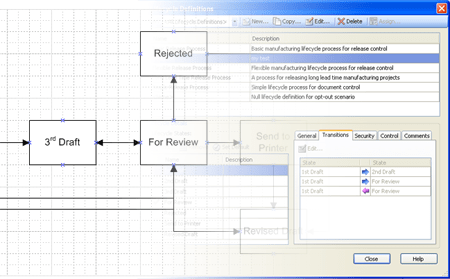
“Import from Visio” creates a lifecycle definition in Vault based on information within a Microsoft Visio file.
Requirements:
Vault Workgroup 2010 or Vault Collaboration 2010 or Vault Manufacturing 2010
Microsoft Office Visio 2007
Introduction:
On Brian Schanen’s blog, he suggested using Visio to map out your lifecycle definition. Using Visio is a good idea, but once the diagram is complete, you need to set up the states and transitions by hand in Vault. Not any more! Import from Visio automates the process of creating lifecycle states.
Click here to download the application
Click here to download the source code
How to use:
- Create your Visio file. Use Process boxes for lifecycle states and Dynamic Connectors for state transitions. The dynamic connectors can have double arrows.
- Save your diagram and close Visio.
- Run ImportFromVisio.exe.
- Log in as an administrator.
- Select the .VSD file. Visio will automatically launch then immediately close. This is normal.

- Fill in the rest of the data.
- Click the “Create Lifecycle Definition” button. You should see an “Import Completed” message after a few seconds.
- Exit ImportFromVisio.exe
- Log into Vault as an administrator.
- Verify that your lifecycle definition exists with the proper states and transitions.
- Add in other data, such as security restrictions, transition criteria and associated categories.
Further information can be found in the readme.
Enjoy.


Leave a Reply to Mike BeebeCancel reply