

To celebrate the release of the Vault 2012, I will be releasing 1 sample app per week for the next 4 weeks.
Let's start things off with the Google Map Extension for Autodesk Vault. This one is authored by Gavin Guo, one of the developers on Vault.

(click image for full view)

Summary:
The Google Map Extension for Autodesk Vault allows you to set user defined property (UDP) values containing location information for files and folders in Vault. You can then view and update these files and folders using Google Map technology.

(click image for full view)
Features:
- View and edit location information for files and folders in Vault.
- View single objects in the custom tab.
- View multiple objects using the Show Google Map command.
- Use either an address or a latitude/longitude point to set the location.
- Works with the GeoRSS property in AutoCAD drawings.
- Customize the information displayed on the Google Map marker.
Requirements:
- Vault Workgroup 2012, Vault Collaboration 2012 or Vault Professional 2012
Click here to download application
Click here to download source code
To Configure:
Before the extension can be used, a Vault administrator needs to configure some settings.
- Download the application.
- Unzip and run the installer.
- Run Vault Explorer and log in as an Administrator.
- Under the Tools menu. Select Administration->Vault Settings.
- Select the Behaviors tab.
- Click the Properties button.
- Decide which UDP you want to use to store Address information and which UDP you want to store latitude/longitude information. Either create new properties or decide on existing ones.
- Make sure that the UDPs are associated to at least File and Folder types.

- Exit out the the Property Definitions window and the Vault Settings window.
- Select Tools->Configure Google Map
- Select the UDPs you want to address and coordinate properties. Select the key property, which is what Google Map will use to set the markers. Select the coordinate format and select the properties you want to show up in the map markers (thumbnails are supported).

- Click OK to save. At this point the extension has been configured.
To Use:
- Download the application.
- Unzip and run the installer.
- Run Vault Explorer.
- Select a file or folder.
- Update either the address or coordinate property, depending on which is the key.
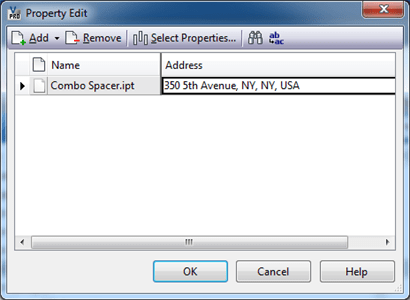
- Save the property update.
- Select the update object and select the Google Map tab. You should see a map correlating to the property data.
- To update, you can drag and drop the map marker to a different location and select Update Map Information.
- To show multiple objects on a single map, multi-select all the files and folders you want to display on any Vault grid. Next, right-click and select Show Google Map command.
As with all the samples on this site, the legal disclaimer applies.
1 app down, 3 apps to go. Keep checking back for more apps and Vault 2012 API details.


Leave a Reply to Doug RedmondCancel reply