


One of the biggest confusions about the Vault/SharePoint integrations is how filtering and paging works. It confuses me from time to time, and I wrote the integration. In this article, I’ll try to describe what’s going on behind-the-scenes to give you a better picture of the integration and how to configure it correctly. Ahh, the joys of middleware.
Let’s start with a SharePoint list showing some Vault data.
 (click image for full view)
Take a minute to guess how that data got from Vault to SharePoint. Whatever you came up with in your head is probably wrong. I’m not saying you are dumb or anything; I’m saying that the workflow is counter-intuitive.
Basically there are three components in play here: SharePoint, Vault and the integration between the two.
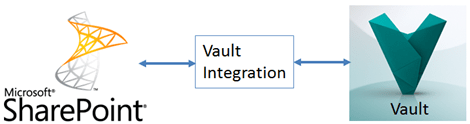
When the user goes to view the list, SharePoint invokes the Integration, the Integration invokes Vault. The data is then pass up through the Integration back to SharePoint. Pretty standard so far.
My example screenshot shows 10 items on the page. So you would think that 10 objects flowed through the Integration. But that’s not what happened. The fact that SharePoint is showing 10 rows/page is a view setting, which include page size, column layout, sorting, etc.
Here is the important thing that you need to understand:
| The integration does not know what the view settings are. |
For example, the Vault Integration does not know to ask Vault for 30 objects. It also doesn't know, which columns to sort by, which page the user is viewing or any of the other things in the view model.
So, what does the Integration use as criteria when it pulls data from the Vault? The answer is Data Source Filters. These are the only things that SharePoint communicates to the Integration. The filters themselves are defined by the integration and will be different depending on the Vault object being shown. In this example, the Integration defined four filters. The values are configurable, but you can't add or remove filters.

(click image for full view)
Basically, the integration only gets to see the part in red. The rest of the list settings are the SharePoint’s view model.
Let’s take a look at the Limit filter. This one is important because that’s how many objects the integration asks for. It has nothing to do with how much SharePoint shows on the screen. If you leave this field blank, the Integration uses the default value of 100. You can set the limit higher if you want, but that may slow things down.
The other filter values are pretty straightforward. Set the State to “Released” and the integration will ask for only Released objects in the Vault. Set the Vault Folder to “$/Projects” and only files under that folder will be returned from Vault.
When the Vault Objects are handed from the Integration over to SharePoint, the view settings are then applied. This includes sorting and filtering. If there are 100 Vault objects, but the view has only 10 items on a page, then the other 90 objects are discarded.
In the end, you have two levels of filtering:
- First Level – Data that the Integration requests from Vault. This is controlled by the Data Source Filters.
- Second Level – SharePoint view settings. This is controlled by the other SharePoint settings.
Let’s walk through the whole process, just to drive the point home…
- A SharePoint user views a Vault list.
- SharePoint invokes the Integration, passing in the Data Source Filters for that list view. (ex. limit=100)
- Integration queries objects in Vault, based on the Data Source Filter values. (ex. the Vault query is limited to 100 results)
- Vault returns the object set. (ex. 100 objects)
- Integration passes the object set back to SharePoint. (ex. 100 objects)
- SharePoint constructs the view, discarding anything not in the view. (ex. display first 10 rows sorted by name, discard other 90 objects)


Leave a Reply to Doug RedmondCancel reply