


Every now and then I write an app only to find out at the end that the app doesn’t work well. This is one of those cases. I’m going to post the app anyway because I believe the code may be of use to somebody. Splunk is a useful tool. I just wasn’t able to do what I wanted given the information that Vault is printing to the logs. Also, I spent a lot of time on it, so I should get a blog post out of it at least.
Here is the app. I was hoping for something that shows the download history of a file.

It would be pretty cool if it worked, but there are too many cases where downloads will not show up in the list. If your users download one file at a time, this will work great. But if they download multiple files at once (and they do), then this app completely falls apart. In my early tests, I only download one file at a time. Oops.
The underlying problem is that the Vault log files are structured around “operations” and not around the “objects” being acted on. Vault likes to operate on multiple objects at once for performance reasons. There is no clean way to log all the objects in one log entry, so that information just doesn’t get logged.
Requirements:
- Vault Workgroup or Professional 2015
- Vault admin rights
- Splunk (free or enterprise)
Click here for the application
Click here for the source code
As with all the samples on this site, the legal disclaimer applies.
Splunk Setup:
OK, there are a lot of steps here. But the added benefit is that you get Splunk up and running which provides a lot of ways for you to manage your Vault data.
- Install Splunk. I don’t recommend installing it on the Vault Server.
- On the Vault Server, open up the IIS manager.
- Go to the logging settings and make sure that “URI Query” is selected.

- Restart IIS if needed.
- Sanity Check: Perform some operations from the Vault Explorer client. The new rows should show query strings describing the server calls. Example:
2014-07-25 18:28:28 10.143.48.29 POST /AutodeskDM/Services/v19/PropertyService.svc op=GetProperties&uid=2&vaultName=Vault&sessID=143994478&app=VP 80 – 10.143.48.22 Mozilla/4.0+(compatible;+MSIE+6.0;+MS+Web+Services+Client+Protocol+4.0.30319.18408) 200 0 0 9 - Open up Splunk.
- Click on the “Add Data” button on the main dashboard.
- Choose “IIS logs” as the data type and follow the instructions. Multiple steps are involved in moving log data across servers, so I’ll leave it to Splunk to explain that part.
- Sanity Check: From the Splunk homepage, click on the “Search and Reporting” button. Click on data summary and select your Vault server host. You should be able to see the contents of the IIS logs.
- In Splunk, to to Settings->Fields.
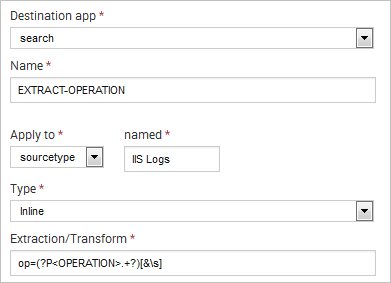
- Select “Add New” for Field Extractions. To create a new field for reading the Vault Operation from the query string.
- Destination App: search
- Name: EXTRACT-OPERATION (or whatever you want)
- Apply To: sourcetype
- Name: IIS Logs (may be different for your Splunk config)
- Type: inline
- Extraction/Transform: op=(?P<OPERATION>.+?)[&\s]
- Add another field extraction. This time you are extracting the File ID. Set Extraction/Transform to fileIterationId=(?P<FILE_ID>.+?)[&\s]
- Add another field extraction. This time you are extracting the User ID. Set Extraction/Transform to uid=(?P<USERID>.+?)[&\s]
- Sanity Check: Open up the Vault client and download some files that are not already in you working folder. When the entries show up in Splunk, expand the entry. You should see that OPERATION, FILE_ID and USERID, as rows.

- If you are using the free version of Splunk, you will need to configure the REST API to allow anonymous login.
Go to $SPLUNK_HOME/etc/system/local/server.conf and add the following line in the [General] section: allowRemoteLogin = always - If you are using the enterprise version of Splunk, you should create a basic user just for reading this data. SplunkVault does not encrypt the Splunk username/password information.
- Download the SplunkVault app from the download link above.
- Extract the zip in the folder C:\ProgramData\Autodesk\Vault 2015\Extensions. You now have a SplunkVault folder under Extensions. I didn’t build an installer for this one.
- Restart Vault Explorer and login as an administrator.
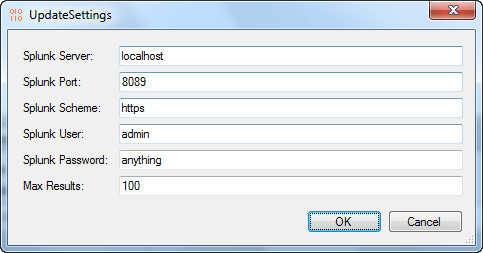
- Go to Tools->Splunk Vault Settings and fill out the fields.
- Splunk Port is the port of the API, which is different from the web page port. 8089 is the default API port.
- If you are using the free version, the user should be ‘admin’ and the password can be any value.
- If you are using the enterprise version, the user and password should be the low-access user you set up in an earlier step.
- Save the settings.
- Download some files that are not in your local folder.
- Right click on a file, and select Download Activity. You should see an entry for the recent download. If not, wait a few minutes and try again.
- You are done at this point.

Leave a Reply