

In my last Coding for Performance article, I explained the best way to get File objects from a set of File ID values. But what if you don't have the ID's? What if you want to get all the files in the Vault, and you don't have any information to start with? I came up with 3 techniques you can use to get this information. Let's see wich one performs the best.
Technique 1: Start at the root folder and recursively scan through each folder one level at a time, gathering up the files along the way. The cost is going to be 2 API calls per folder in the Vault. For each folder, we will be calling GetLatestFilesByFolderId and GetFoldersByParentId with the recurse parameter set to false.
Technique 2: Gather up all the folders and get all the files in all the folders with 1 API call. You can get all the folders by calling GetFolderRoot then calling GetFoldersByParentId with the recurse parameter set to true. Next, call GetLatestFilesByFolderIds and pass in all folder IDs. The result will be all files. So we get it all in 3 API calls.
Technique 3: Do a file search with no search conditions, which will result in finding all files. FindFilesBySearchConditions is the functions that I will be using. I will be passing in null for the folderIds parameter, which will result in a search across all folders. The number of API calls depends on the paging setup. Divide the total number of files by the paging size and that's how many API calls are made.
NOTE: I'm going to assume that there are no file shares for this test. In other words, each file lives in one and only one folder.
NOTE: Technically there are 2 variables here, the number of folders and the number of files. To simplify things, I'll assume a constant ratio between files and folders. This is usually the case in the real world. The more files you have, the more folders you will probably have. I will be using a ratio of about 10 files for every 1 folder.
Here is the resulting graph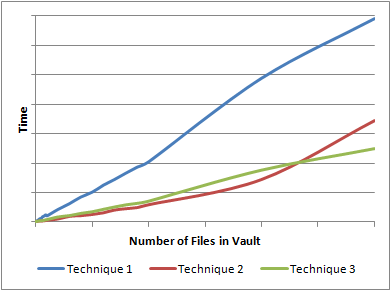
So what happened here? It looked like Technique 2 was slightly better than Technique 3, but it curved up at the end. The reason is that Technique 3 tries to get to much information in a single call. First, it gets every folder in the Vault with a single call to GetFoldersByParentId. Next, it gets every file in the Vault with a single call to GetLatestFilesByFolderIds.
As I mentioned in my last performance article, you need an upper bound on these calls. You can't just get millions of objects in a single call. Both Technique 1 and Technique 3 have boundaries built-in, which keeps things nice an linear. Technique 3 wins out because it makes less API calls than Technique 1. Another nice thing is that Technique 3 is folder independent. It will have the same performance regardless of the number of folders or the folder structure.


Leave a Reply to Doug RedmondCancel reply