

Put on your Ramones T-shirt and get out your beige box because it’s hacker time. Not real hacking, of course, since I work for Autodesk. This is more of a “programmer for a major software corporation posting to a blog” style of hacking.
Anyway, the goal is to display up a better message when our programs run across an error from Vault. For example, instead of “303” as the error message, I’ll show you how to display “PermissionDenied” or whatever else you want.
There are over 800 error codes that the Vault server might return, and they always take the form of a number. We want to display something human readable and we don’t want to spend all day typing.
Here are the hax0r tools you will need:
- The Vault SDK
- Microsoft Excel
- Microsoft Visual Studio 2010
Step 1: Get the error codes
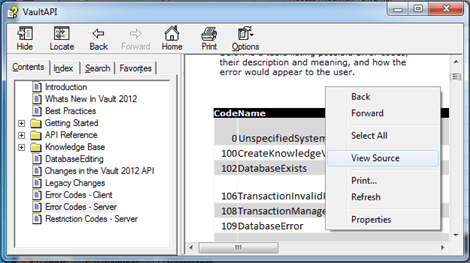
You can find the list of error codes in the SDK documentation. Go to the “Error Codes – Server” page has our list. It has all the codes, and it has text names of the codes.
Right click on the page and click on “View Source.” This will pop up the raw HTML. Save the text as an HTML file. Now we have the codes out of the CHM. The codes are in table form, which is good, but we need to do more with this data. So let’s fire up a spreadsheet program.
Step 2: Edit in Excel
Open the HTML file in Excel, which will take the error code table and put it in spreadsheet format. Feel free to delete everything outside the error code table.
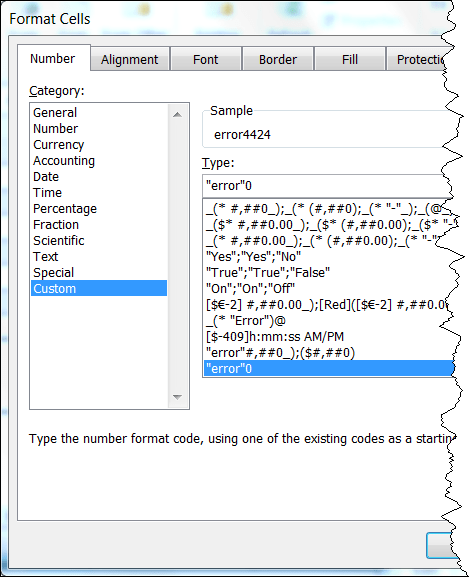
We need to put a text prefix in front of our error numbers. Visual studio won’t like it if we have a number as our first character, so we are going to add the word “error” in front of all error number. Select all the error numbers, right click, and choose “Format Cells.” In the number tab, put in “error”0 as the custom format. Now we have a word in front of our error codes.
Your error code table should look like this. 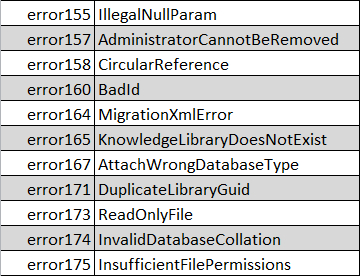
Step 3: Copy into Visual Studio
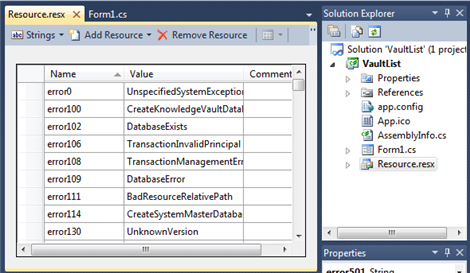
Inside of your Visual Studio project, create a new RESX file if you don’t have one already. To create a new one, you need to add a new Resources File to your project. If you are not familiar with the concept, a resources file is a place to store things in your program like images and string tables. It’s the perfect place for this error code table.
In Excel, select the first two columns from our error code table. Don’t select all rows, just the rows with error codes in them. Copy these cells.
In Visual Studio, select your RESX file and go to the Strings part. Run the paste command and it should put in all our data. Now we have all our error codes in a format where it is easy to look up from our code.
Step 4 (optional): Error handling with Invoke Events
As I mentioned in my Invoke Events article, you have common hook point for handling all the errors coming back from the server. So here is some example code that makes that happen…
|
// C#
using (WebServiceManager serviceManager = new WebServiceManager(login)) { // add hooks to all services that you use // do this right after the manager is created serviceManager.DocumentService.PostInvokeEvents += Service_PostInvokeEvents; serviceManager.PropertyService.PostInvokeEvents += Service_PostInvokeEvents;
// do stuff }
// gets called after every web service call void Service_PostInvokeEvents(object sender, WebServiceInvokeEventArgs e) { if (e.Exception != null) { DisplayError(e.Exception); return; } }
// show the message to the user void DisplayError(Exception ex) { string errorCode; List<string> restrictionCodes;
GetErrorAndRestrictionCodesString(ex, out errorCode, out restrictionCodes);
string errorMsg = String.Empty; if (errorCode != null) { string desc = Resource.ResourceManager.GetString("error" + errorCode);
if (desc == null) desc = "Unknown error";
errorMsg = "Error retuned from Vault Server: " + desc; } else errorMsg = "Error: " + ex.Message;
MessageBox.Show(errorMsg); } |
|
' VB.NET
Using serviceManager As New WebServiceManager(login) ' add hooks to all services that you use ' do this right after the manager is created AddHandler serviceManager.DocumentService.PostInvokeEvents, AddressOf Service_PostInvokeEvents AddHandler serviceManager.PropertyService.PostInvokeEvents, AddressOf Service_PostInvokeEvents
' do stuff End Using
' gets called after every web service call Private Sub Service_PostInvokeEvents(ByVal sender As Object, ByVal e As WebServiceInvokeEventArgs) If e.Exception IsNot Nothing Then DisplayError(e.Exception) Return End If End Sub
' show the message to the user Private Sub DisplayError(ByVal ex As Exception) Dim errorCode As String Dim restrictionCodes As List(Of String)
GetErrorAndRestrictionCodesString(ex, errorCode, restrictionCodes)
Dim errorMsg As String = [String].Empty If errorCode IsNot Nothing Then Dim desc As String = Resource.ResourceManager.GetString("error" & errorCode) If desc Is Nothing Then desc = "Unknown error" End If errorMsg = "Error retuned from Vault Server: " & desc Else errorMsg = "Error: " & Convert.ToString(ex.Message) End If
MessageBox.Show(errorMsg) End Sub |
The code for the GetErrorAndRestrictionCodesString is from an earlier article.


Leave a Reply to Doug RedmondCancel reply