

Keeping with the theme of visualizing things that are not visual by default, I present to you Show Revision Diagram. Showching Tong and Alan Zang created this app to help illustrate the revision concept.

Requirements:
- Vault Workgroup 2012, Vault Collaboration 2012 or Vault Professional 2012
Click here to download the application
Click here to download the source code

To Use:
Just download the app and run the install. Right click-on a file and run the Show Revision Diagram command. A dialog will pop-up showing the revision history for that file.
The large character represents the revision iteration. The small number to the right is the version number that represents the revision. If the text is underlined, then the revision is currently not a released state.
A revision that has been re-released (most likely through a quick change processes) will display a large box with smaller boxes inside. The larger box represents the main revision. The smaller boxes show the multiple version that represent each released version of the revision.
An O with a bar over it represents a null revision or the absence of a revision. This is treated in the same manner as an actual revision.
The color of the boxes has no meaning.
Hover your mouse over a box to see its lifecycle state. 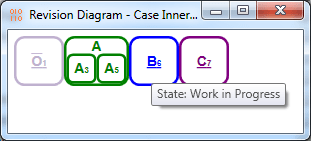
As with all the samples on this site, the legal disclaimer applies.
Check back next week for the final app in the series. It's like the Plugin of the Month page times 4.
Leave a Reply