

Update: For Vault 2013 and higher, the recommended size for command icons is 16×16.
Vault 2011 gives you the ability to add commands to Vault Explorer. You also have the option to include an icon with the command. I don't need to tell you how helpful icons can be in presenting your command. But I do need to tell you about a few things you need to be aware of in the Vault Client API. 
I'll also talk a bit on how deal with icon transparency. I've created a grand total of 1 icon in my life, so I'm not an expert or anything. But if have less experience than I, you might want to have a quick read.
Icons in the Vault Client API
Here are the basic steps in getting an icon to work with your Vault command:
- Create the icon file. However the Client API does not support .ico files. So I recommend creating a 32×32 PNG file instead.
- Make sure that the image still looks good when scaled to 16.×16. Since you are not dealing with an .ico file, you can't just create a 16×16 version.
- In your Visual Studio project, create a resource (.resx) file.
- Add your PNG file to the resource.
- In your IExtension implementation, ResourceCollectionName should return the name of the resource with the icon in it. For example, if your resource file is called "Icons.resx", you would return "Icons".
- When creating your CommandItem object, set the IconResourceName property to the name of your icon as it shows up in the resource file. In other words, the resource key of the image.
- Set the ToolbarPaintStyle in your CommandItem object to either Glyph or TextAndGlyph depending on how you want it displayed. Glyph is useful if it's just a toolbar command. TextAndGlyph works best for menu commands.
- Compile and run. You should now have an icon with your command.
Using transparency in icons
Unless your icon has a 32×32 square shape, you will probably want to use transparency. For PNG files, this means selecting a single color and designating it as your transparent color. At runtime, this color becomes transparent. Not all image editors let you set a transparent color. I don't think Microsoft Paint or Visual Studio let you do this, so you will need a better image editor.
When using transparency, it's important to have a clear and solid boundary between transparent and opaque pixels. Things like blurry edges and shadows are a bad idea. They might look good on a white background, but you get a halo effect on a different color background.
Here are some examples comparing a white background with a black background (white is the transparency color).

Bad – blurred edges
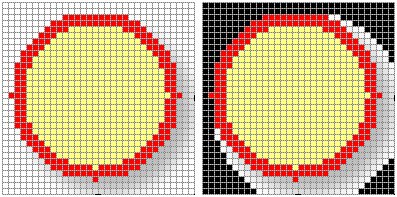
Bad – shadow

Good – image looks the same regardless of background
A common technique is to use something other than white as your transparent color. Usually this is something bold and completely different than any other colors used.


Leave a Reply